The short answer
- Check theme output and selected media size.
- Prepare suitable master files before uploading.
- Verify generated variants and caches on the public page.
On this page
Find the template and media size responsible for the request
Inspect a representative post, card, and hero in the browser. Record the selected image URL and display width. WordPress documents responsive image support and the generated source candidates. A theme can still request an unsuitable size or output markup that does not fit its layout.
Locate the media entry and the template that uses it. An original camera file may be appropriate as an archive but unnecessary for a small public card. Do not overwrite the only master simply because one view is heavy. Decide whether you need a better source upload, a different generated size, or a template correction.
Prepare a smaller master from an untouched original
Choose dimensions that cover the largest real use in your theme. Preserve the original outside the public delivery workflow. Resize once from that original, then compare encodes. Check photo detail, visible text, and any transparent areas before selecting a file.
Use descriptive versioned names when your editorial process allows them. Keep a note of intended crop and maximum display use. Uploading a 400-pixel thumbnail as the only source can make a later full-width article look soft. Uploading a print-resolution file for every small illustration can make the workflow unnecessarily expensive.
Check the format through the complete media pipeline
Before changing formats broadly, confirm that your WordPress installation, hosting image libraries, and theme can handle the chosen output. A file that uploads successfully can still have derivative or downstream integration issues. Test one ordinary image and one transparent graphic before converting a whole library.
Compare the generated candidate bytes and visible quality, not only the uploaded master. If the system regenerates an unexpectedly large variant, trace its configured dimensions and quality. Keep the established delivery system where it works. A local compression pass is meant to improve assets, not quietly replace your entire media architecture.
Replace content references without losing editorial details
Update the relevant block or template reference to the new media entry. Preserve meaningful alt text and captions. Check internal links that point to the old downloadable file, especially if the image is also used as a document attachment or product resource.
Do not remove an old media item until you understand where it is used. Shared thumbnails, social previews, and older articles can depend on it. A reversible change starts with a known new file and a limited set of reference updates. Record where the replacement was made so you can roll back if a crop problem appears.
Inspect the public page and its responsive derivatives
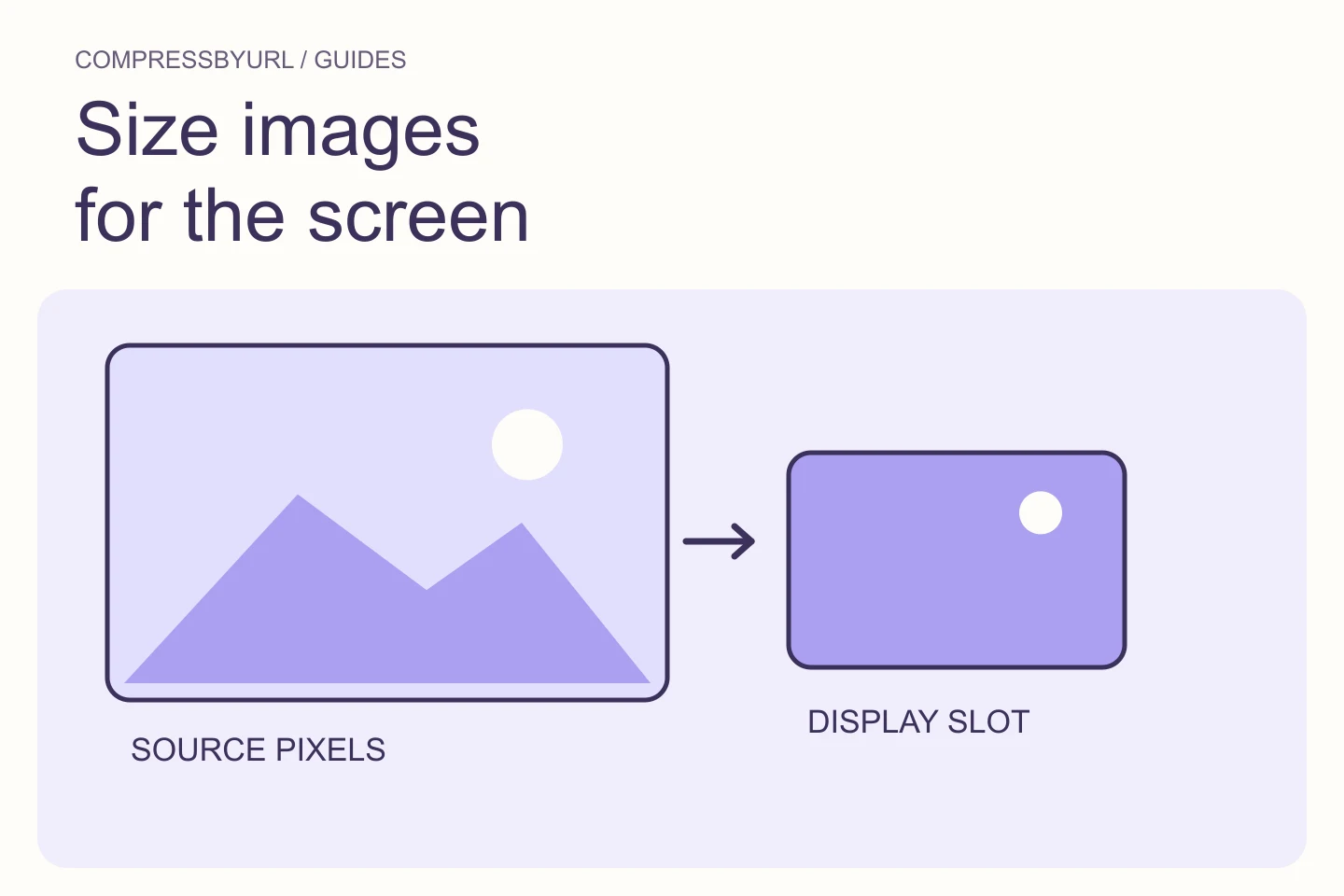
Open the page as a visitor at narrow and wide layouts. Read the selected source and Network request. Confirm that responsive candidates match the theme’s display slots. An editor preview or media-library thumbnail is not enough evidence that the public page now serves the right file.
Check caches at the page, asset, and CDN layers that your site actually uses. A versioned URL can make a replacement easier to verify, but follow the hosting workflow instead of clearing every cache blindly. Ensure the image area remains stable and that the intended crop is visible on mobile.
Make future uploads follow the same lightweight checklist
Write a short publishing standard with the maximum useful master width, acceptable format choices, and the visible details editors should inspect. Keep it tied to your real theme. A generic rule such as “everything must be under 100 KB” can create unreadable diagrams and inadequate hero images.
CompressByURL can prepare local files or help identify public webpage candidates. It does not connect to your WordPress account or update posts automatically. Download the approved files, upload them yourself, and verify the final page. A consistent input and template process is more durable than repairing each oversized upload after it reaches production.
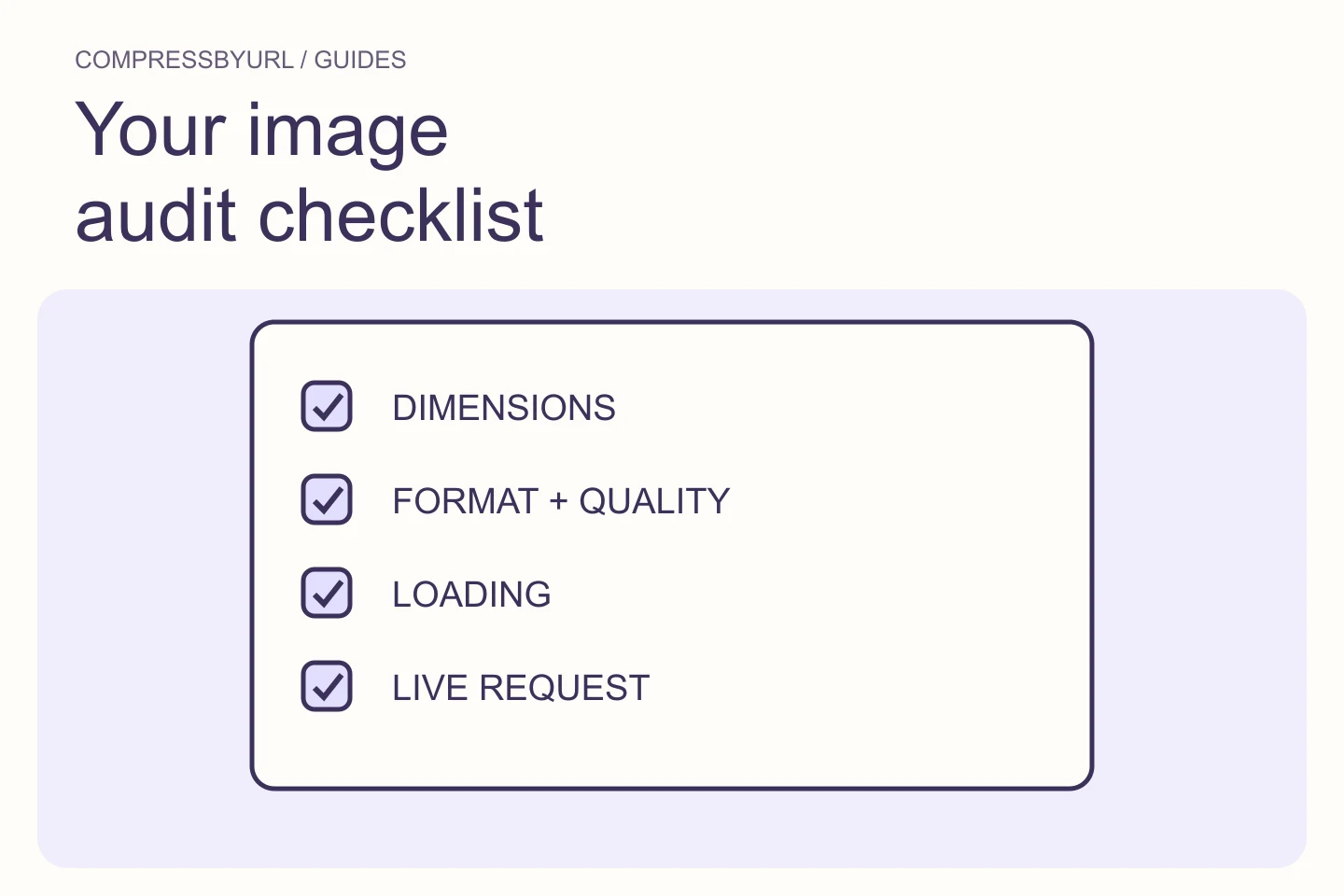
- Keep original masters available.
- Test one replacement before a library-wide change.
- Preserve alt text and intentional captions.
- Check actual responsive requests after publishing.
Common questions
Does this require access to my WordPress account?
You need your normal publishing access to replace site assets. CompressByURL does not receive that access or publish on your behalf.
Should I delete old originals immediately?
No. Identify shared uses and preserve a rollback path before removing or replacing media.
Sources and further reading
Technical references for the concepts in this guide. Examples with hypothetical values are illustrations, not measured results.