The short answer
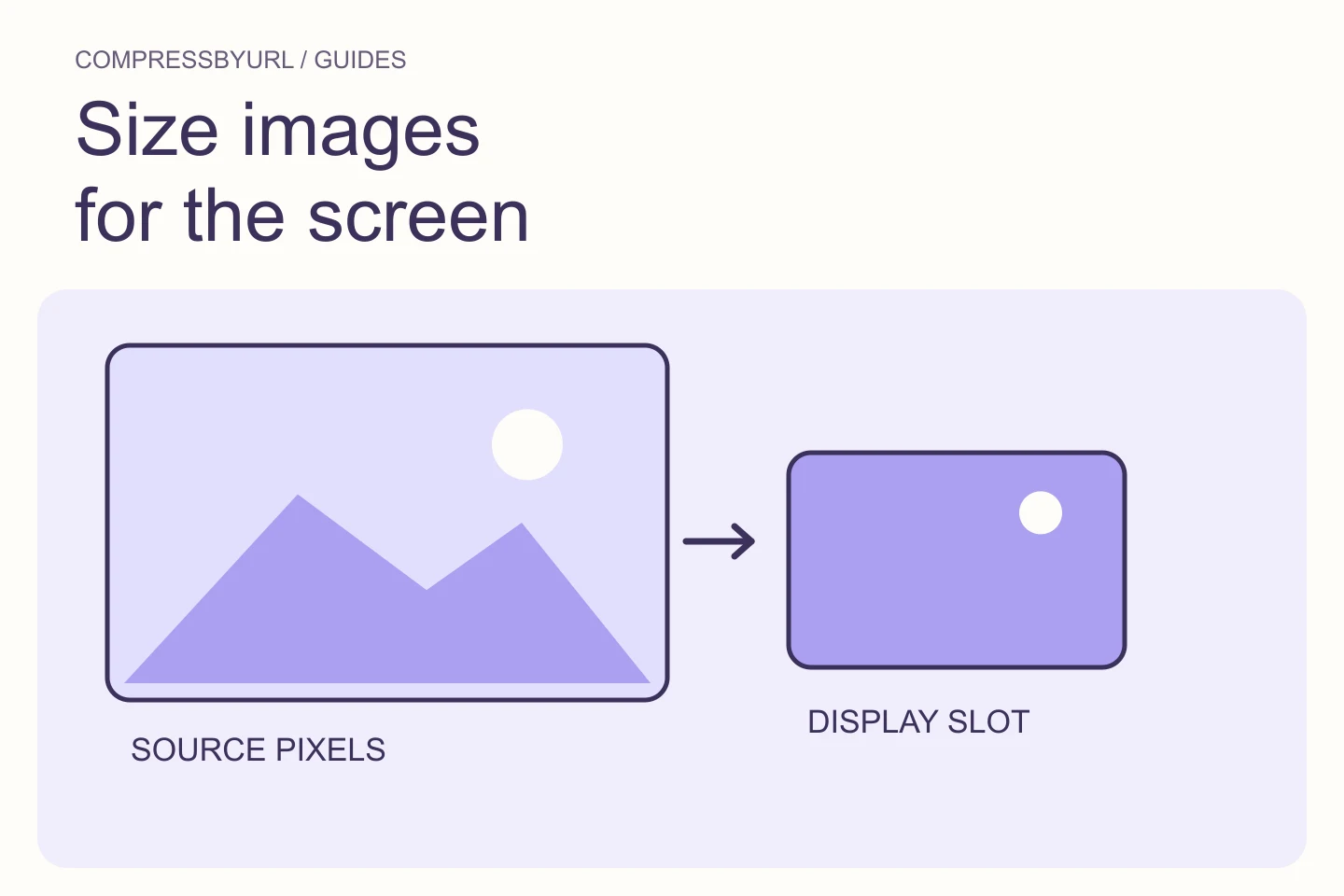
- Measure the actual slot, not the uploaded file.
- Account for pixel density and larger layouts.
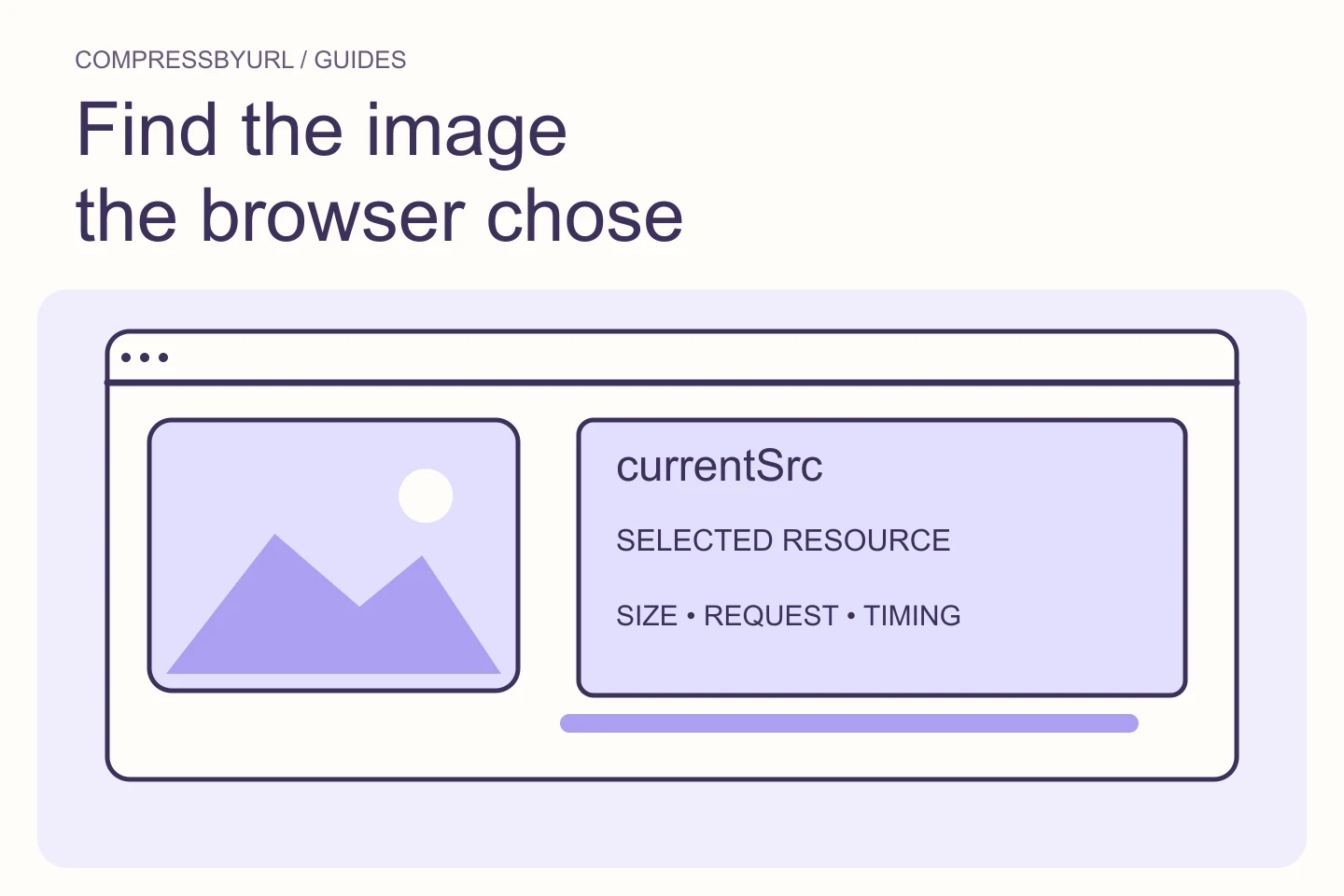
- Verify srcset and currentSrc after deployment.
On this page
Identify the image variant that GTmetrix flagged
GTmetrix describes this finding as a mismatch between delivered image dimensions and the displayed image. The report points you to candidate resources. Copy the listed URL and compare it with the resource on the live page. A CMS may have already produced several sizes while a theme accidentally requests the original.
Record the test viewport and the page component. A warning for a 240-pixel sidebar card should not lead you to shrink the shared image used by a full-width detail page. Your task is to correct that particular request path. Keep the source original available for uses that still need its pixels.
Calculate a useful width for each display slot
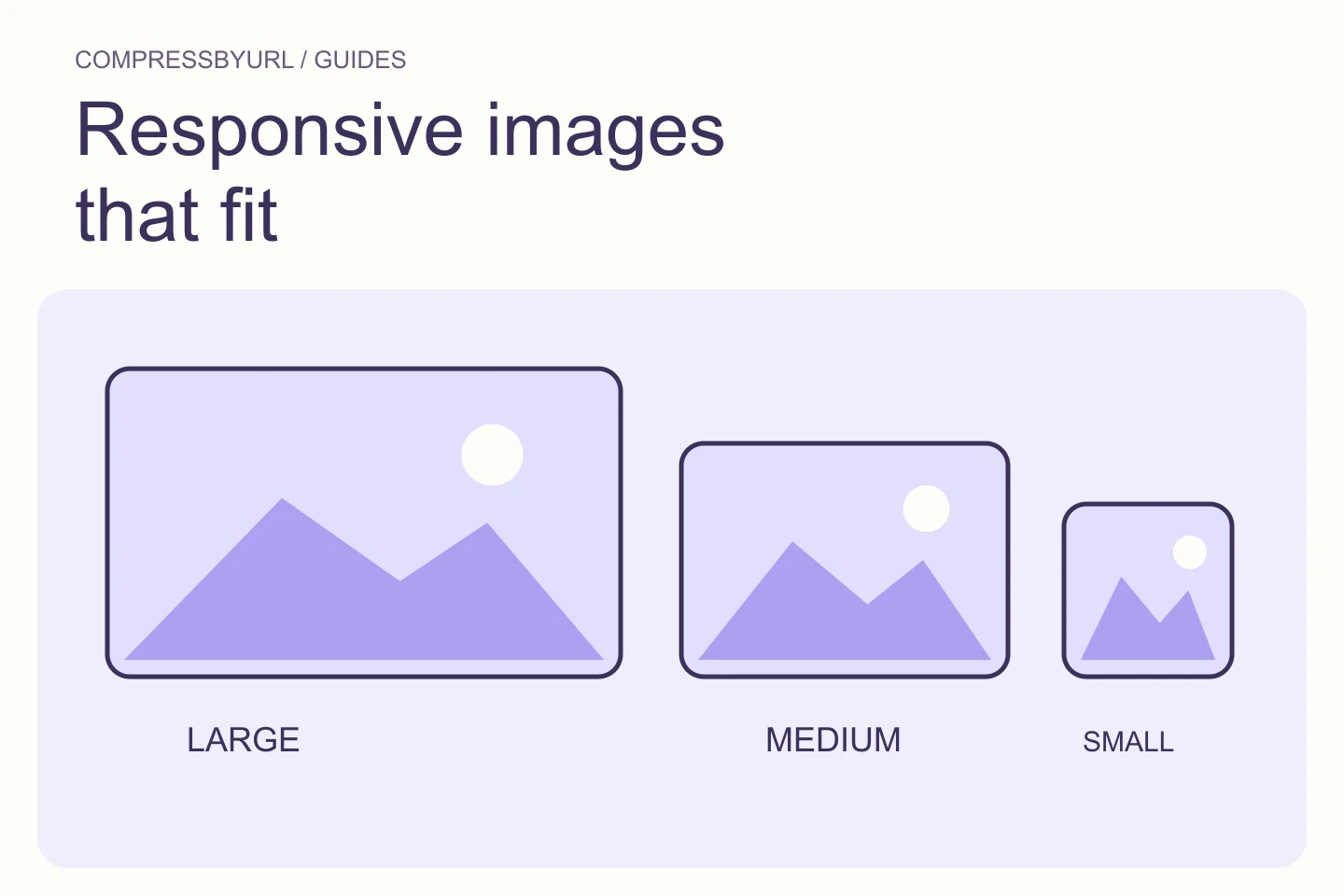
Consider a card that occupies 320 CSS pixels on a narrow screen. At a chosen density of 2×, a 640-pixel candidate is a reasonable starting point. If the same design reaches 480 CSS pixels on desktop, a larger candidate may be useful there. These numbers are a worked layout example, not a mandatory sizing recipe.
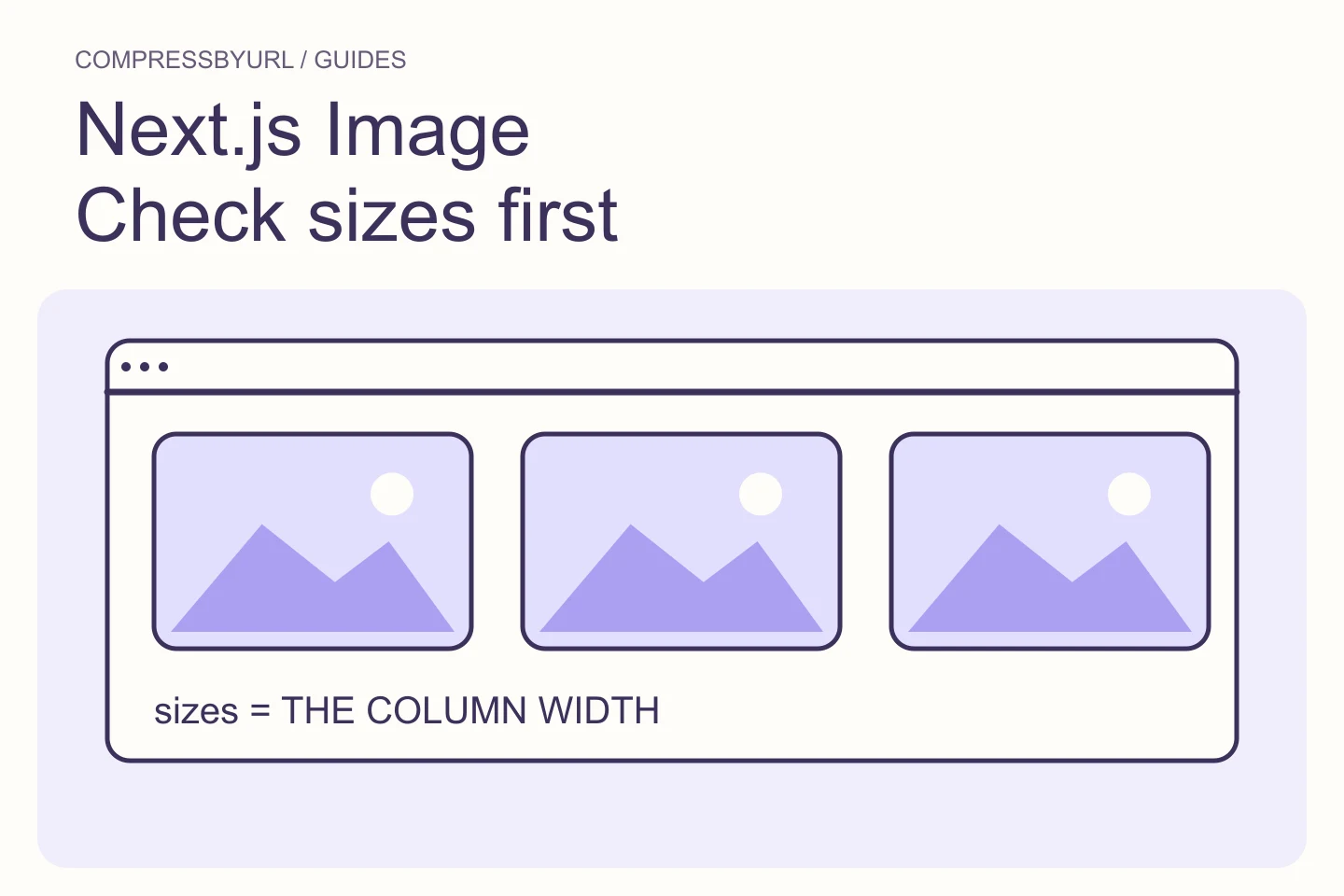
Measure the slot after the page has settled and after any responsive breakpoint. Container padding, column gaps, and a sidebar all reduce the space actually occupied by the image. Using the whole viewport width for a card inside a three-column grid overestimates its needs. Maintain the crop’s aspect ratio unless the design deliberately uses a different crop.
Make the resize decision before the format decision
Start with the highest-quality source you own. Resize that source once to each intended output width. Repeatedly reducing and recompressing an already small derivative gives you less room to preserve detail. Compare the resized image with the intended view, especially textured products, faces, and fine architectural lines.
Then compare formats at those dimensions. A 640-pixel JPEG and a 2400-pixel WebP do not test the same variable. Keep the larger original outside the public delivery path if it has no page use, but retain it in your own source archive. Do not upscale a small original merely to fill a nominal export size.
Connect the replacement files to the responsive template
Prepare a short set of widths that match the real component rather than a huge list of arbitrary sizes. Supply appropriate image candidates and a sizes expression that describes the display slot. If your framework creates candidates automatically, inspect its generated HTML and make sure your layout information is accurate.
A fixed thumbnail can have a simpler setup than a fluid hero. A mobile crop can require art direction rather than width switching. Keep these concerns distinct in the implementation ticket: width variants answer resolution needs, while crop variants answer composition needs. Both should retain useful alt text and a predictable layout.
Inspect the chosen resource on a fresh page load
Open a fresh navigation at the target viewport and inspect the selected source URL. Resizing an already loaded page is not always a clean test of candidate selection because the browser may keep a previously downloaded larger image. Check the Network entry as well as the element. Test a second layout where the image is larger.
If the original is still requested, trace the relevant template setting. Common suspects include an incomplete srcset, a sizes value that describes the viewport instead of the column, and a theme setting that chooses full resolution. Replace the responsible reference rather than uploading another copy with a confusing filename.
Define success in pixels, bytes, and visual quality
For an illustrative acceptance check, a card could use a 640-pixel asset instead of a 3000-pixel asset while keeping the same 320 CSS-pixel slot. The width reduction is easy to confirm; byte savings depend on the image and encoding. Record the real files rather than assuming a fixed percentage from the pixel count.
Use CompressByURL to create the widths locally, then deploy them through your site’s workflow. Re-run the GTmetrix test under the same settings and inspect both small and large layouts. If the warning clears but the desktop image looks soft, the responsive set is incomplete. Correct that before marking the work done.
| Component | Example CSS width | Example 2× candidate |
|---|---|---|
| Small card | 320px | 640px |
| Article image | 720px | 1440px |
| Full-width hero | Measure actual layout | Choose variants after measuring |
Common questions
Is 2× always required?
No. It is a starting choice for an example layout. Balance the image’s detail, supported devices, visible quality, and transfer budget.
Can CSS max-width fix the downloaded file size?
CSS controls presentation. It does not replace the large resource with a smaller encoded file; the delivery markup or image service must choose that file.
Sources and further reading
Technical references for the concepts in this guide. Examples with hypothetical values are illustrations, not measured results.