The short answer
- Describe the actual layout in the sizes prop.
- Inspect the generated request rather than the original file alone.
- Fix remote allowlists and loading behavior separately from sizing.
On this page
Find the request produced by your Image component
Inspect the rendered image on the exact route that overfetches. Record its selected URL, the requested width if your optimizer exposes one, and its displayed width. The source asset can be large without every visitor receiving the original; conversely, an optimized URL can still request a wastefully large variant.
Check whether the project uses the default optimizer, a custom loader, or unoptimized delivery. Those routes can behave differently. Do not compare the image file in your repository to the Network transfer and assume they are the same resource. Capture the route, viewport, and selected candidate as your starting evidence.
Match sizes to the grid rather than the viewport
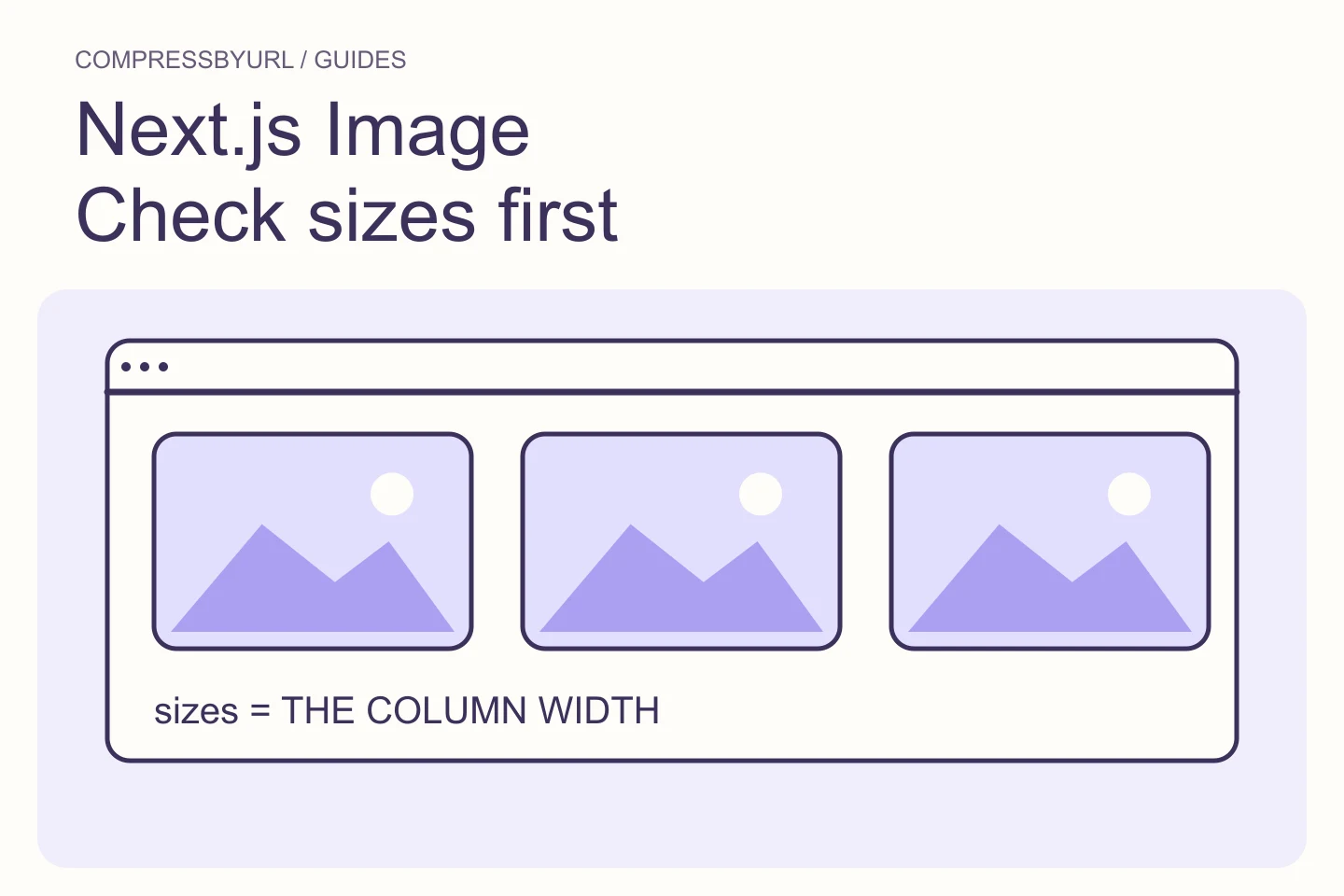
The Next.js Image documentation explains how sizes influences responsive candidate generation and selection. For a fluid image, supply a sizes expression that follows your actual layout. Without a correct hint, a grid image can be treated as if it needs much more horizontal space than its column provides.
In an illustrative design, the image occupies nearly the full screen on mobile, half the available width on a tablet, and a fixed slot inside a capped desktop grid. Translate those conditions into the prop. Include gutters and the maximum container width where relevant. A blanket 33vw is still too large on a very wide screen when the container has stopped growing.
Use fill only when the parent owns the geometry
A fill image needs a containing layout that establishes its area. Give that parent deliberate dimensions or an aspect ratio and appropriate positioning. Object-fit controls whether the content is cropped or fitted within that area. It does not determine how many pixels should be downloaded.
If the source dimensions are known and the layout is straightforward, explicit width and height can make intent clearer. Choose the implementation that fits the component rather than treating fill as a universal performance fix. In both cases, verify layout stability and the size hint. A correct ratio and a correct delivery width solve different problems.
Configure remote sources narrowly and independently
For remote images, check your project’s allowed image source patterns against the current Next.js documentation. An image optimization allowlist is a security configuration, not a remedy for an oversized card. Do not broaden it to all hosts because one CMS image failed to load.
Keep the expected hostname, path, and any query constraints as specific as your delivery system permits. If the public URL changes by CMS environment, document that variation. CompressByURL’s separate public-image intake does not configure your Next.js optimizer. Keep the application’s delivery rules and the local compression workflow as separate work items.
Check the candidate under fresh responsive loads
After correcting sizes, load the page freshly at each important breakpoint. Read the generated srcset and currentSrc and check the corresponding Network request. The browser can keep a larger already-loaded image during resizing, so a session that began at desktop width is a poor way to judge a cold mobile request.
Inspect visible detail, not just request width. If the expected smaller candidate looks soft, revisit the density target or source quality. If the expected larger candidate is still much heavier than necessary, compare encodes separately. Avoid changing quality at the same time as sizes during the first experiment so you can identify which correction caused the result.
Reduce source weight without replacing the delivery system
Prepare a sensible original or master asset before publishing it to your CMS. Avoid uploading an enormous print file for a small editorial slot. Keep enough pixels for the largest real layout, then let the established delivery path produce the responsive candidates. The local resize tool can help create that master.
Finish with an acceptance note containing the component’s layout assumptions, its sizes expression, selected candidate widths, and a visual check. Retest pages that reuse the component. A component-level sizing correction can be more durable than compressing each new upload more aggressively to compensate for the same inaccurate hint.
| Symptom | Check |
|---|---|
| Grid card downloads a hero-sized file | sizes and the capped grid width |
| fill image has no stable area | Parent geometry and positioning |
| Remote image is rejected | Allowed remote source patterns |
| Correct width but large transfer | Source quality and encoding |
Common questions
Does using Image guarantee small downloads?
No. Source quality, loader behavior, and layout hints still matter. Inspect the actual delivered resource.
Should every image be preloaded?
No. Use loading controls for the confirmed critical image. Offscreen cards should not all compete with first-view content.
Sources and further reading
Technical references for the concepts in this guide. Examples with hypothetical values are illustrations, not measured results.