The short answer
- Inspect the actual selected resource, not just src.
- Compare delivery with the computed display slot.
- Keep cache state and test viewport in the evidence.
On this page
Identify the visible element and its selected source
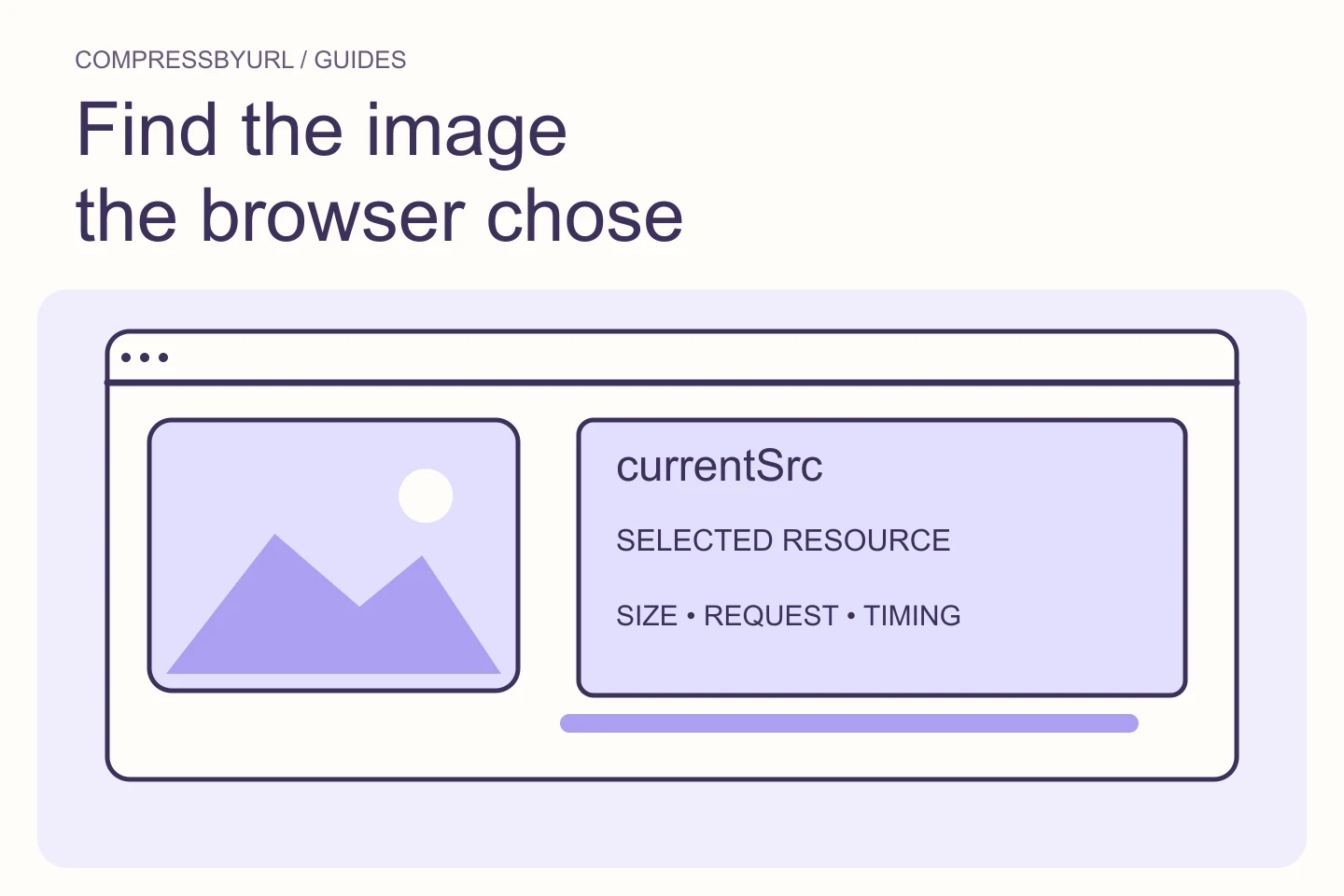
Select the image in the Elements panel and inspect its source candidates. MDN defines currentSrc as the full URL of the selected image resource. That property helps distinguish the file the browser chose from the fallback src shown in the markup.
Match that URL to the Network entry. A resource name with a width parameter is a hint, not proof of the decoded dimensions. Inspect the actual asset or available image metadata where needed. For backgrounds, follow the computed CSS rule and its request instead; currentSrc applies to image elements, not every visual region.
Compare the delivery width to the actual slot
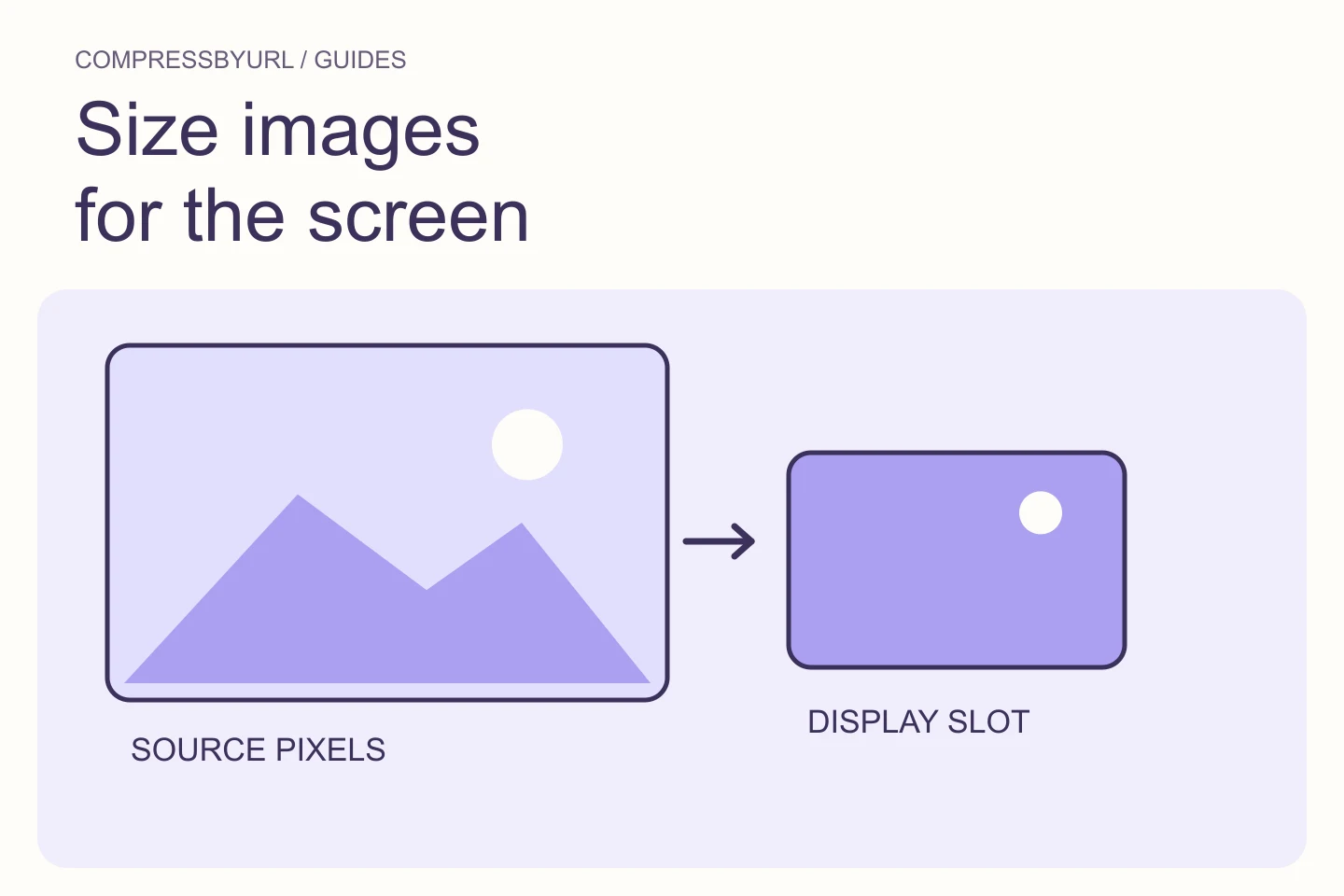
Measure the element’s displayed width in CSS pixels and consider your chosen density target. In an illustrative card, a 300 CSS-pixel slot on a 2× display could justify a 600-pixel candidate. A 2400-pixel original in that slot deserves investigation, but confirm crop and expected density before declaring a smaller width correct.
Repeat at another important breakpoint. A source used by both a card and a large detail page may need separate variants. Fix the requesting template rather than overwriting the only original with a thumbnail. Write down the slot measurements so responsive markup changes can be checked against real geometry.
Read bytes and timing as different evidence
The Network panel can show resource and transfer information, and its waterfall helps locate request timing. Record which value you are using. A file’s size on disk, an encoded response, and a transfer observed with cache behavior are related but not interchangeable.
For a critical image, also look at when the request begins. A small file discovered late can still be a performance problem. A large file requested early may need resizing or encoding. Keep both observations in the issue so an asset change does not get mistaken for a discovery fix.
Use a short read-only console check when useful
This small browser-console example lists ordinary image elements on the current page. It reads their selected URL and display box without sending data anywhere. It excludes CSS backgrounds and cannot tell you the complete network transfer history. Treat the output as an element inventory, not a performance score.
Run it only on a page you are inspecting, then map an interesting row back to the Network entry. A zero natural width can indicate an image that has not loaded successfully or has not completed loading. Do not treat that value as proof that the image has no cost.
Array.from(document.images, (image) => ({
  source: image.currentSrc || image.src,
  displayWidth: Math.round(image.getBoundingClientRect().width),
  naturalWidth: image.naturalWidth,
  loaded: image.complete && image.naturalWidth > 0
}));
Make the issue actionable for the asset owner
Attach the page, viewport, selected URL, slot width, observed bytes, and proposed replacement. If the problem is an inaccurate sizes expression, name the component. If it is an inefficient source, attach the approved exported candidate. Avoid a vague ticket that says only “optimize images.”
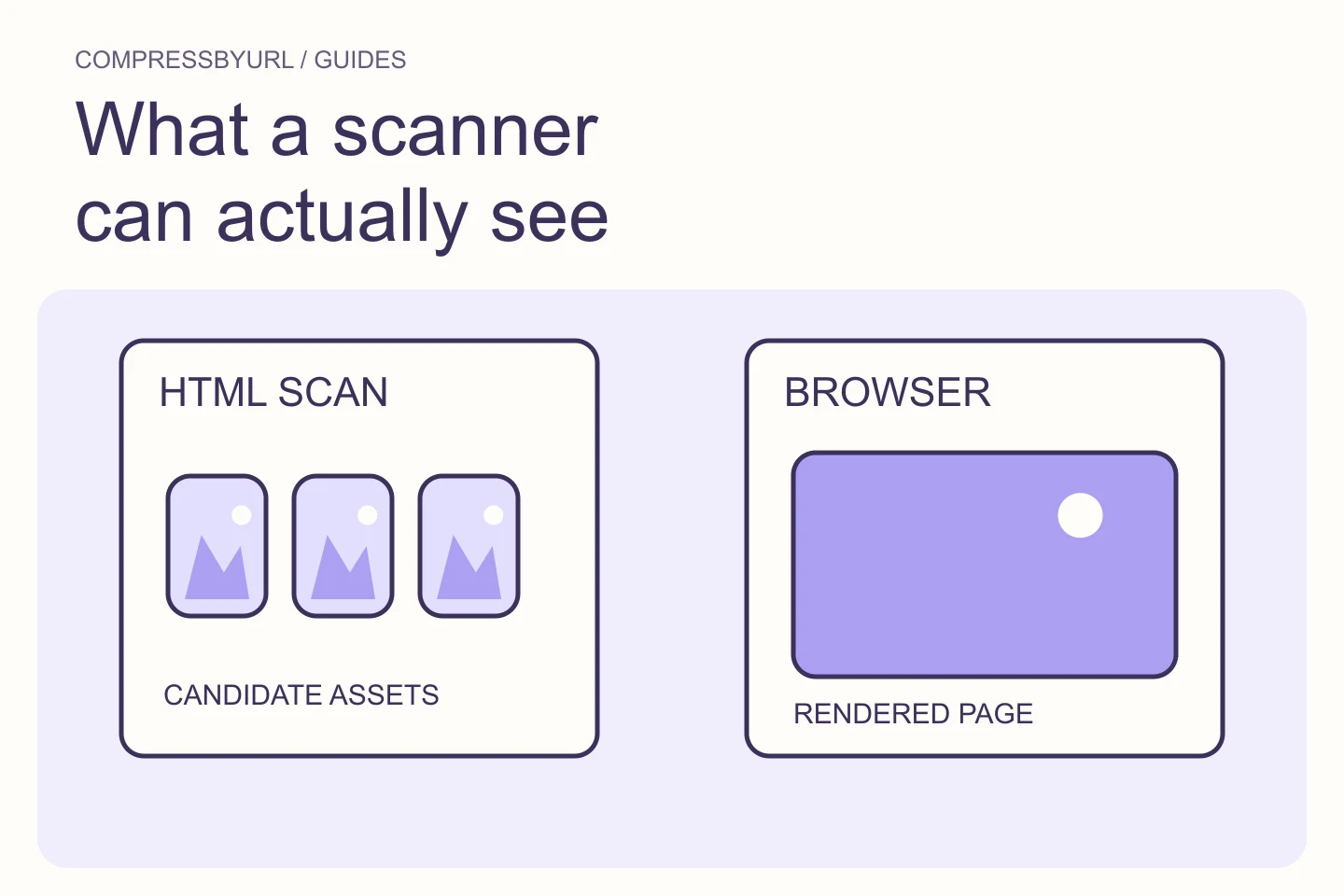
Use the website scanner to gather additional static candidates, then confirm important ones in DevTools. After deployment, repeat the same navigation and verify the requested file. Keep the original and your measurements so the next edit can explain both what changed and why.
Common questions
Does currentSrc include background images?
No. It belongs to HTML image elements. Inspect computed background styles and their network requests separately.
Can I judge mobile selection by shrinking a loaded desktop page?
Use a fresh mobile navigation as stronger evidence. A browser can keep a larger candidate it already downloaded.
Sources and further reading
Technical references for the concepts in this guide. Examples with hypothetical values are illustrations, not measured results.