The short answer
- Compare the same page state and selected image candidate.
- Record viewport, location, network, and cache differences.
- Keep lab diagnostics separate from real-user history.
On this page
Compare the tested page before comparing its score
Record the exact URL and final redirect destination for both reports. Check whether the page content matches: a consent banner, experiment, authentication state, or region-specific widget can alter the first view. A test of one content state is not directly comparable to another.
Save the screenshot and image resource list from each report. Compare the critical visible region and selected hero candidate. If one test requested a desktop original and the other a mobile derivative, you already have a concrete investigation. Explain that difference before treating the score gap as a mysterious tool disagreement.
Write down environmental differences
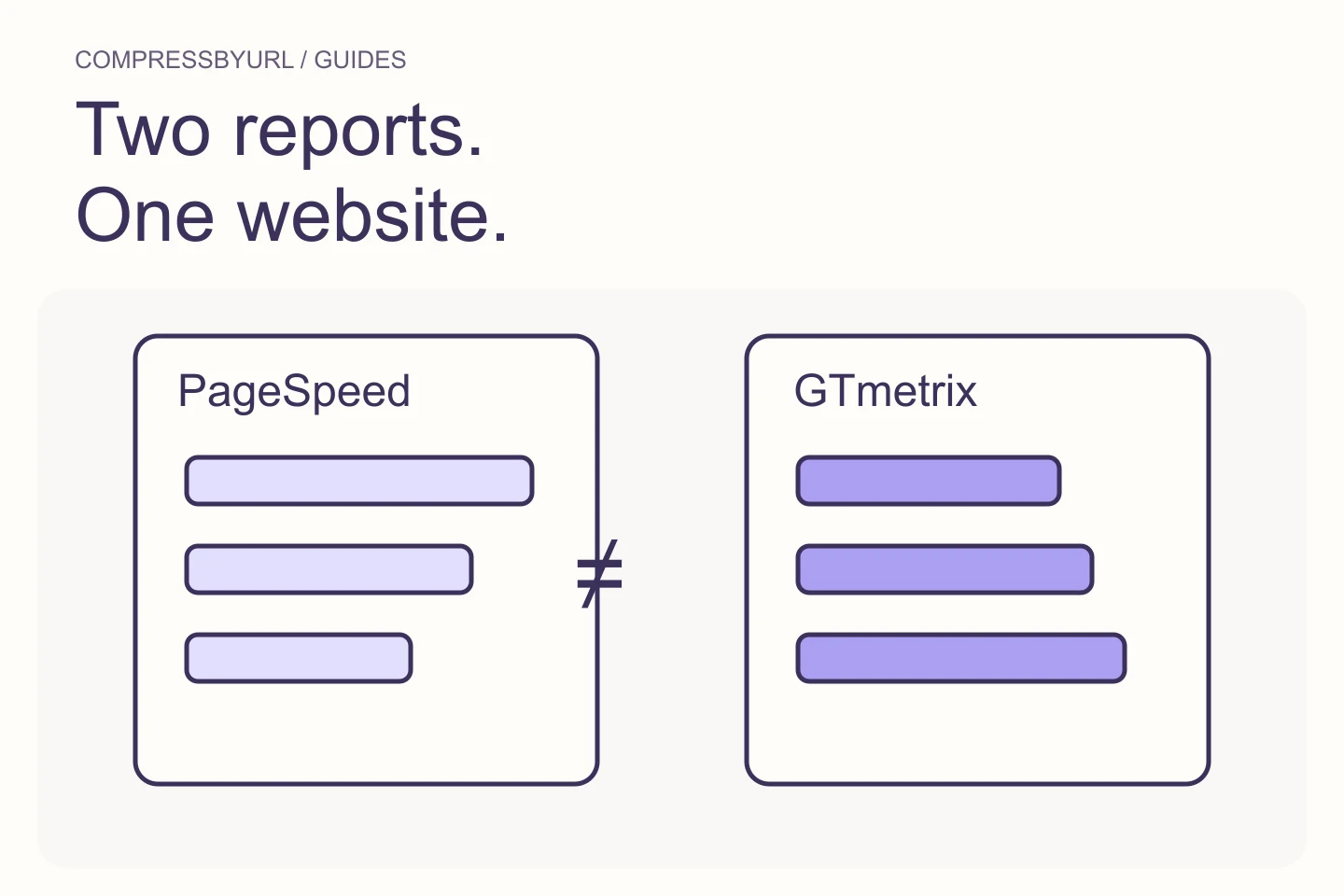
GTmetrix documents differences in testing methodology and configurable analysis settings. A different viewport, connection, location, or processing condition can change which image is selected and how long it takes to appear. Read the settings shown in your actual reports rather than assuming defaults from an old tutorial.
Build a short comparison table beside the results. Mark a setting as unavailable if you cannot inspect it. Do not manufacture identical environments by guessing missing values. Use each tool consistently for before/after measurements and use cross-tool comparisons to generate questions, not to claim a precise improvement percentage.
Distinguish Lighthouse diagnostics from visitor history
Google’s PageSpeed documentation explains the distinction between lab and field data. A lab run examines a controlled navigation, while available field data reflects real visits over a reporting period. A newly deployed image replacement can affect a fresh lab navigation before a historical field summary visibly changes.
Read the scope of field data, including whether it applies to a URL or a broader origin. If no field data is available, say so. Do not report an origin-level result as proof that one article image is fixed. Keep your deployment date in the worksheet so later comparisons have a meaningful boundary.
Reconcile warnings at the resource level
Match findings by actual resource URL and page use rather than by audit label alone. Lighthouse terminology can change, and tools can organize recommendations differently. A sizing issue in one report and an image-delivery opportunity in another may lead to the same underlying asset correction.
Check the actual source dimensions, display slot, and transferred bytes. If the reports disagree about the resource, inspect a local browser navigation at the relevant viewport. A CMS derivative, cached URL, or CDN format response can explain the difference. This is more actionable than optimizing until every tool happens to display the same grade.
Use repeated runs to avoid treating noise as progress
Measure the same tool configuration several times before and after deployment. Note variable server response and external resources. A single favorable run is weak evidence, particularly when the change was a tiny image reduction and the rest of the page is dynamic.
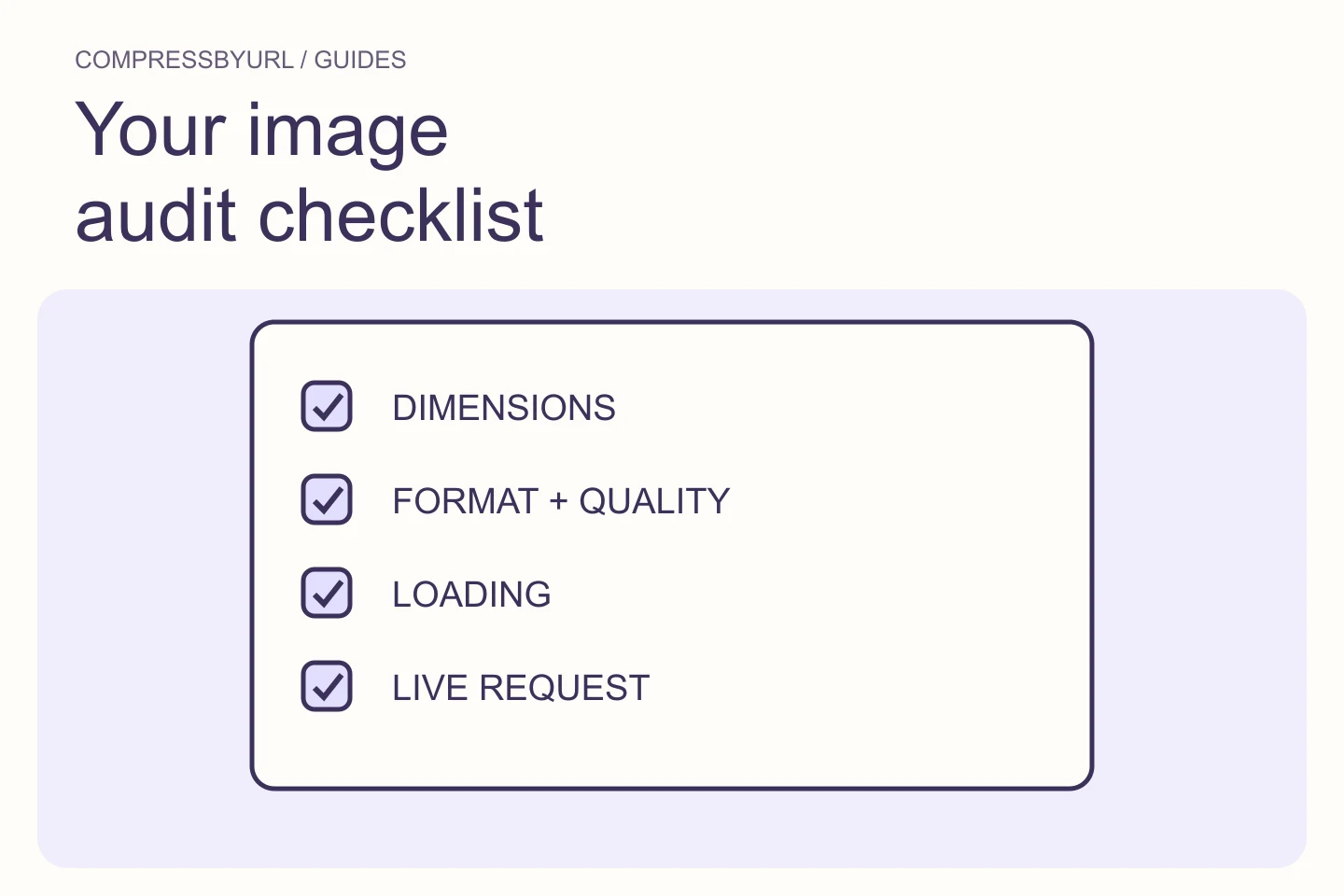
Check whether the expected mechanical result happened: smaller bytes, correct candidate width, earlier discovery, or stable geometry. These observations can support the implementation even when total timing fluctuates. Keep them separate from uncertain score changes so you can explain what the patch actually accomplished.
Turn disagreement into one next debugging step
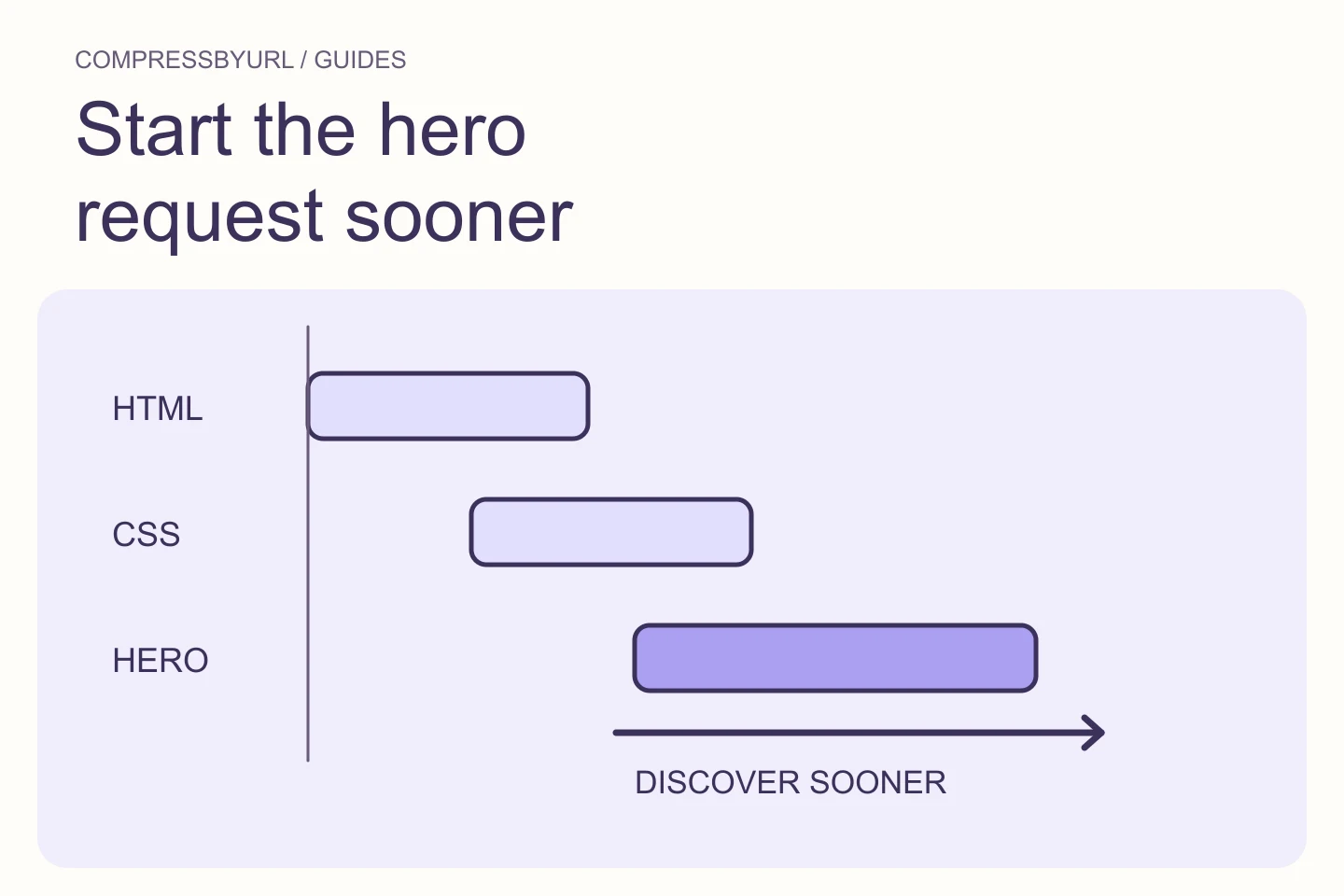
If one report flags a large mobile image, inspect responsive hints. If both request the same image but its request starts at different times, inspect discovery and the surrounding resource schedule. If the bytes are similar but paint differs, investigate rendering and scripts. Choose the next step from evidence.
Use the scanner for an owned-asset inventory and the compressor for candidate files. Neither replaces the rendered test needed to measure timing. Finish the image work with live-resource evidence, then keep monitoring the visitor metrics that matter. A matching pair of grades is less useful than a clear record of the problem you solved.
| Comparison field | What to record |
|---|---|
| Content state | Redirects, banners, and visible page |
| Device and viewport | Layout and selected image candidate |
| Delivery | Resource URL, bytes, and cache state |
| Timing evidence | Lab navigation versus field summary |
Common questions
Which score is the correct one?
Each reflects its own conditions and methodology. Compare settings and resource behavior, and use available real-user data to assess visitor experience.
Why did field data not change immediately?
Field summaries reflect a reporting period of real visits. A fresh lab run can respond to a deployment sooner than that historical data.
Sources and further reading
Technical references for the concepts in this guide. Examples with hypothetical values are illustrations, not measured results.