The short answer
- Hold dimensions constant during the encoding comparison.
- Inspect sensitive detail at the actual display size.
- Keep the source original and verify the production replacement.
On this page
Separate inefficient encoding from oversized pixels
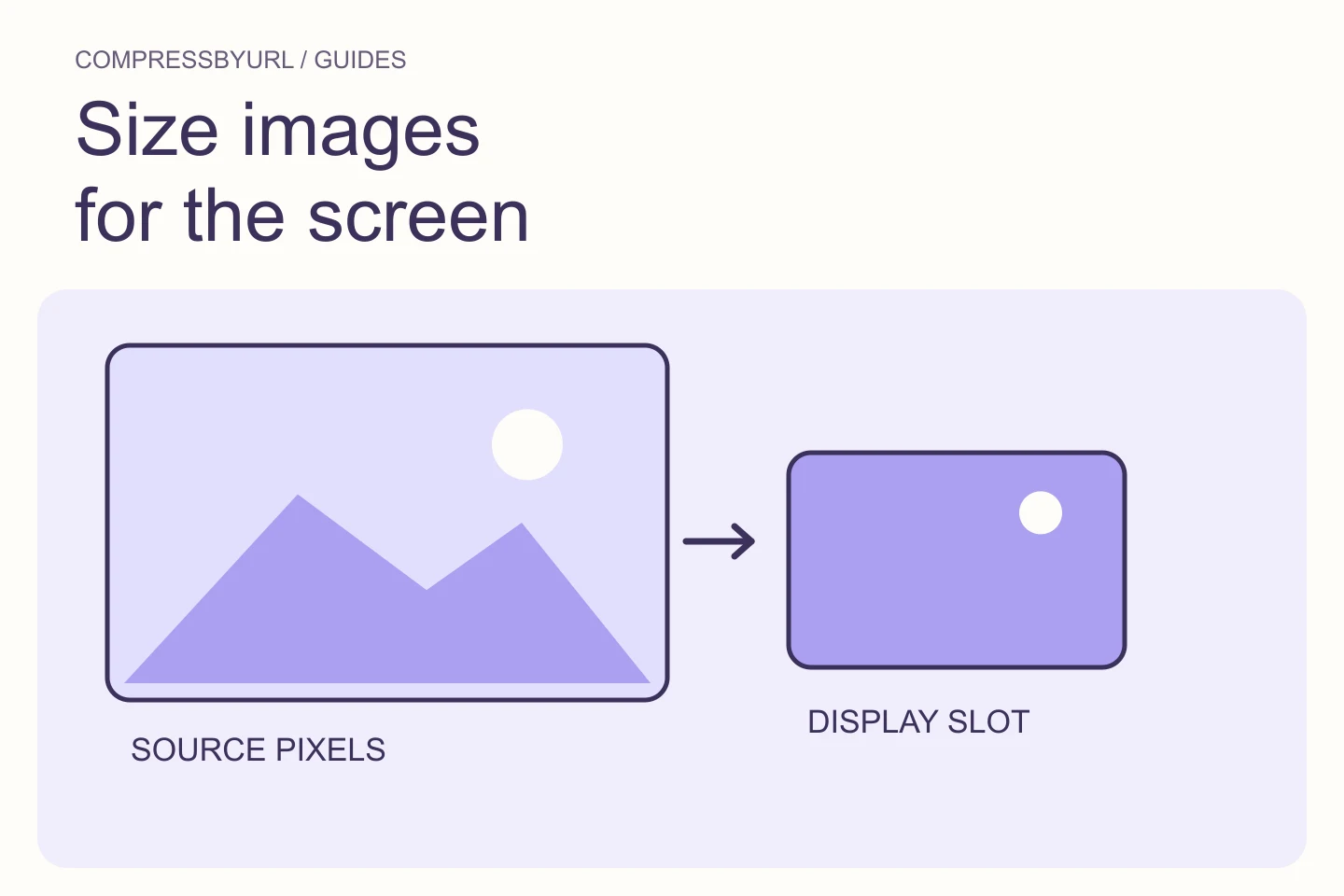
GTmetrix’s encoding recommendation concerns opportunities to make image files more efficient. Treat it separately from the sizing recommendation even if the same resource appears in both. Record the file URL and the visible use. A high-quality export of a small thumbnail and a gigantic camera original can waste bytes for different reasons.
Fixing dimensions first makes the encoding experiment easier to interpret. Keep a copy of the original and create one resized working source. From that source, compare multiple encoding settings. If you change crop, width, and quality together, you might get a smaller file but lose the ability to explain or reproduce the result.
Choose visual acceptance criteria before moving the quality slider
Decide what the reader needs to see. A product photograph may need readable model markings and smooth reflections. A tutorial screenshot may need exact text edges. A background texture can tolerate more loss than either. Write two or three visible criteria so quality review does not collapse into “looks fine on my laptop.”
Inspect the output at its intended display size, then zoom in on the most sensitive region. A zoomed inspection can reveal damage, but it should not force you to preserve invisible detail at unlimited transfer cost. Include a high-density screen in your check when the image serves one. Keep transparency against the actual page background.
Run a small export experiment from one source
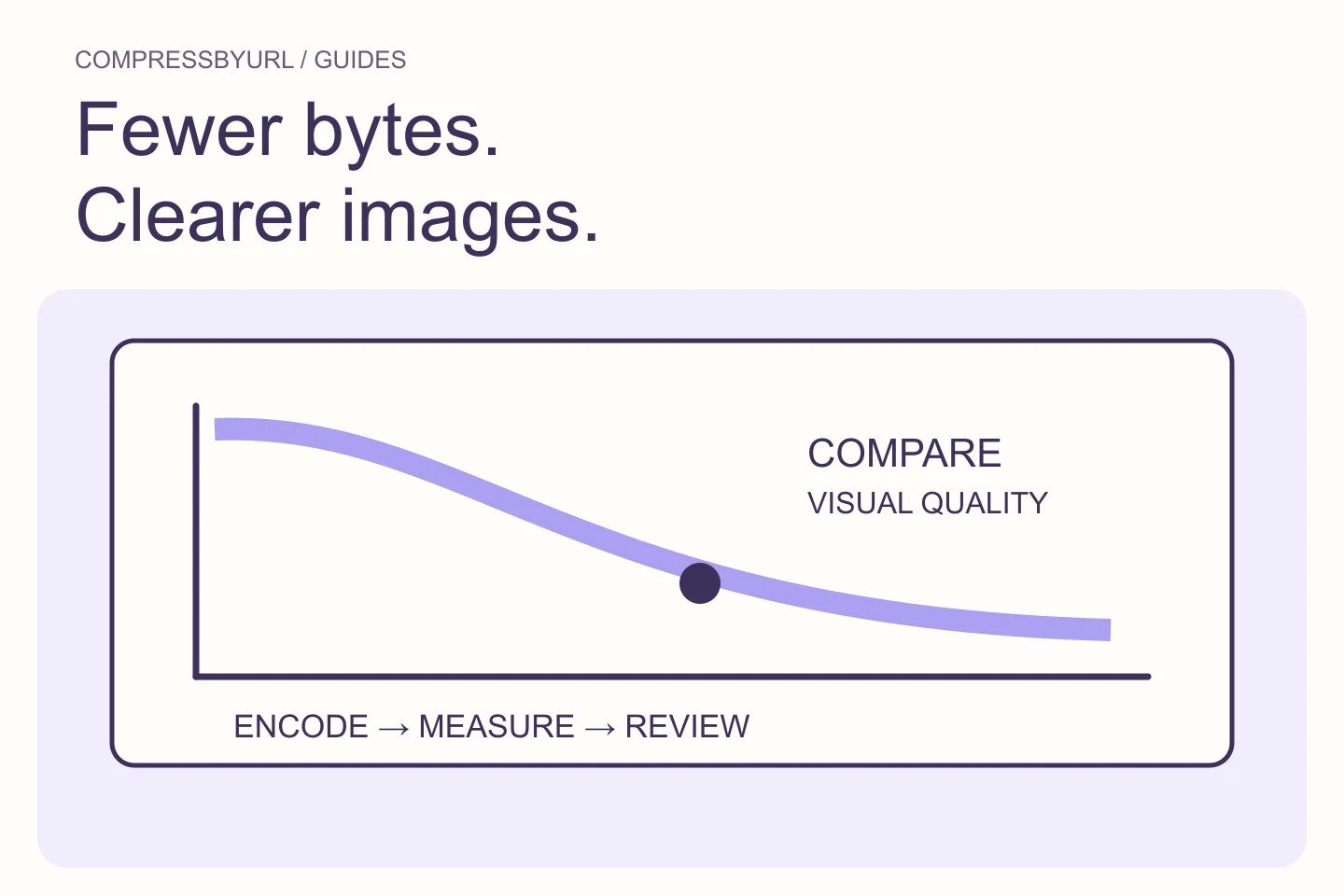
Create an initial candidate, a more conservative candidate, and a more aggressive candidate. Record dimensions, format, bytes, and whether each meets the visual criteria. The labels are for your own experiment, not universal quality numbers. Different encoders interpret quality scales differently, so a matching number across formats is not a fair visual comparison.
Select the smallest candidate that passes. If two files look indistinguishable in the page, the larger one needs a reason to stay. If the smallest produces banding, ringing, or broken text, reject it. Do not treat every available byte reduction as free. A noticeable defect is an editorial or product problem even if an audit estimate looks attractive.
Use lossless paths for images that cannot tolerate artifacts
For screenshots and crisp interface graphics, try a lossless optimization path before a photographic lossy workflow. A large screenshot may also need fewer pixels, but resizing tiny labels can introduce its own blur. Sometimes the right edit is to crop irrelevant blank space or split an unreadable screenshot into focused details.
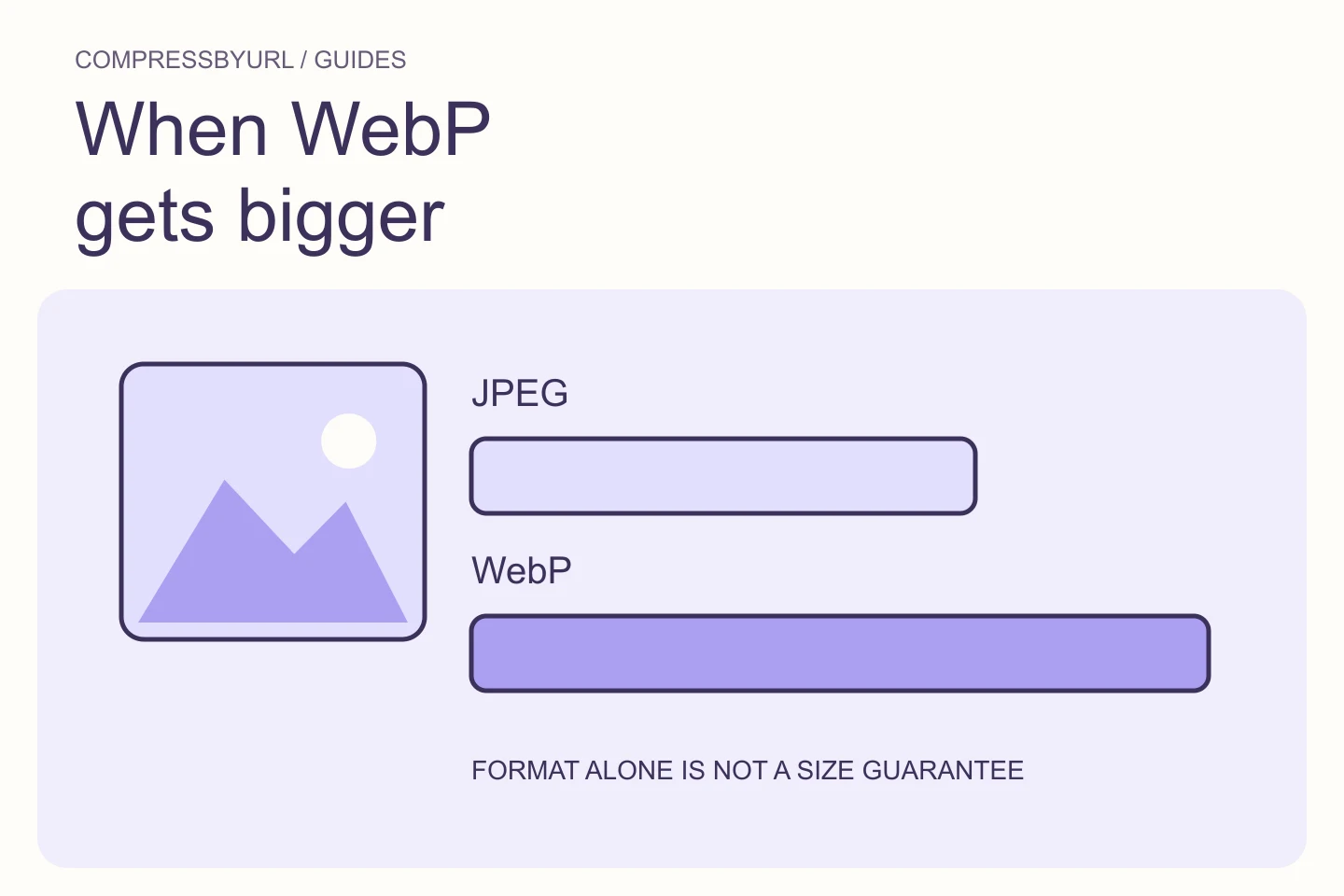
Keep format constraints in view. JPEG cannot preserve alpha transparency. A transparent asset can be compared in PNG and supported alpha-capable alternatives. If a site requires PNG, use the PNG optimization route rather than forcing a lossy format merely to satisfy a score. The acceptable output is defined by the use, not by the report label.
Deploy the selected bytes and catch stale variants
Upload the chosen export under a versioned filename when your asset workflow allows it. Update the page reference and any responsive candidates. Clear the relevant cache or wait for the normal deployment invalidation. Open the public page, inspect the requested URL, and compare the downloaded bytes to the file you approved.
Check a second page that shares the component. A CMS may regenerate images or a CDN may add its own transformation. Keep a deployment note with the original filename and approved settings so a later upload can follow the same standard. Do not silently overwrite a source used by print or another larger display context.
Measure savings without claiming a matching speed increase
Suppose an illustrative 400 KB file becomes a 160 KB candidate at the same dimensions. That is a 60% file-size reduction. It says nothing by itself about the page’s timing improvement: the image may be offscreen, cached, or blocked behind another bottleneck. Record the real byte change alongside the actual page measurements.
Use the browser compressor to compare candidates locally, download the accepted result, and rerun the same GTmetrix configuration after deployment. Finish when the right file is served and the image passes your visual acceptance check. If the audit remains, inspect the exact remaining URL rather than reducing quality blindly again.
- Preserve an untouched source.
- Compare identical dimensions and crop.
- Reject artifacts that affect the image’s purpose.
- Confirm the delivered file after publishing.
Common questions
What quality number should I use?
There is no universal setting. Start with your tool’s default, compare actual outputs, and choose the smallest file that meets your visual requirements.
Will repeated JPEG compression improve the source?
No. Work from an original when possible. Repeated lossy exports can accumulate artifacts without recovering any lost detail.
Sources and further reading
Technical references for the concepts in this guide. Examples with hypothetical values are illustrations, not measured results.