The short answer
- Inspect labels at the actual article display size.
- Try lossless PNG optimization before lossy conversion.
- Crop or split a dense screenshot when scaling makes it unreadable.
On this page
Decide what information the screenshot must preserve
List the labels, states, and highlighted controls the reader needs. Open the screenshot in the actual article column. A file can look sharp at full resolution and still be unreadable when the page reduces it to a narrow mobile width.
Keep a clean original capture. Remove personal details before publishing through an appropriate editing workflow; compression is not redaction. If the screenshot’s purpose is one small control, a focused crop may communicate it better than a complete desktop view. Do not crop away context required to understand the instruction.
Try a lossless PNG path before introducing artifacts
PNG is a useful format for precise reproduction and transparency. Use an optimization path that preserves the decoded pixels when those edges matter. In CompressByURL, the PNG route is an appropriate first comparison for a static screenshot that needs to remain PNG.
Measure the result instead of assuming a large saving. Some sources are already efficient, and a lossless optimizer may have little room to reduce them. A small improvement is still valid if the visible content stays identical. Do not present a fixed savings percentage as an inherent property of screenshots.
Resize only when the image contains genuinely unnecessary pixels
If the screenshot is far larger than its intended display, prepare a smaller candidate and inspect text. Scaling raster letters can soften their edges, especially when the target width makes them too small to read. Choose the display use first rather than forcing every screenshot to one nominal width.
Consider separate overview and detail images. The overview explains location; the detail makes the relevant label legible. This is an editorial composition choice, not a magic encoder setting. Keep captions clear about which region the detail shows and preserve enough surroundings to avoid confusing the reader.
Compare alternative formats without sacrificing readability
A photographic lossy export can add ringing around text or change thin interface lines. Inspect those areas deliberately. If your delivery system supports alternative formats, compare actual output bytes and the displayed screenshot rather than copying quality settings from a photo workflow.
Check transparency against the page background when the capture includes rounded corners or isolated UI. A solid-background conversion may look fine in one article but fail in another theme. Keep the accepted format aligned with the content’s requirements. Static AVIF or WebP may be worth testing, but the format name alone does not establish a better result.
Keep screenshot presentation stable and accessible
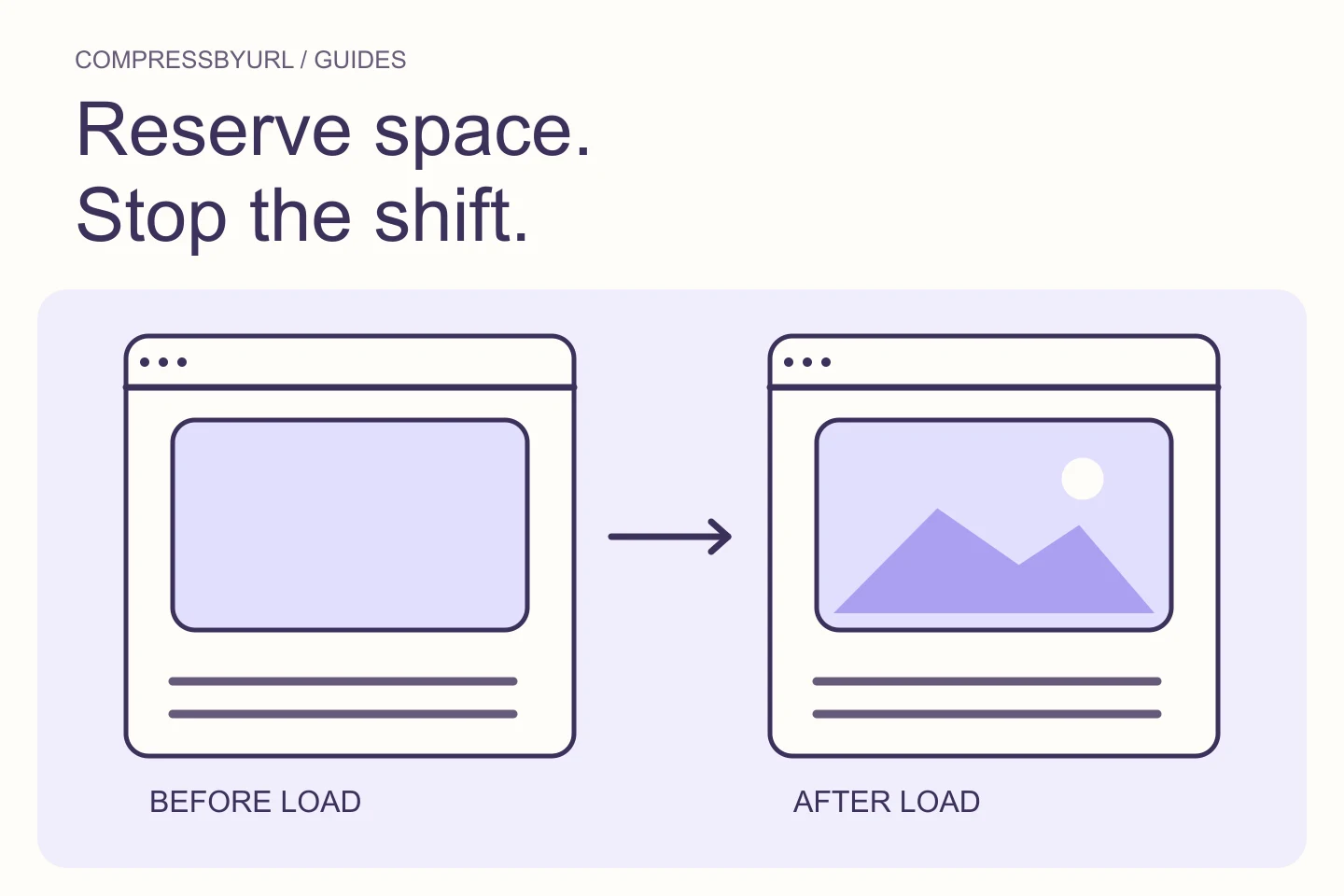
Supply correct dimensions or a reserved frame so the article does not jump when the image arrives. Use descriptive alt text that communicates the essential information, and explain important settings in nearby text rather than relying solely on tiny labels inside a bitmap.
For a long procedure, several focused screenshots can be easier to follow than one enormous composite. Check the page on mobile and verify that a reader can still understand the instructions. A file-size target has failed if it saves bandwidth by making the tutorial unusable.
Use an acceptance checklist tailored to text
Compare the original and candidate at the target size. Check thin text strokes, selected controls, colored status labels, and transparent edges. Confirm that cropping preserves the topic and that the downloadable file matches the format you intended. Record the actual byte difference.
Use the PNG compressor to make a local candidate and inspect its preview before publishing. If a strict upload ceiling cannot be reached without damaging the labels, simplify the composition or split the content where the destination allows it. Preserve an original for future revision instead of repeatedly compressing the smallest current file.
| Problem | Better next experiment |
|---|---|
| Already sharp but unnecessarily heavy | Lossless optimization |
| Whole desktop shrunk into unreadable text | Focused crop or separate detail |
| Halos around letters | Reject aggressive lossy settings |
| Large empty margins | Intentional crop with enough context |
Common questions
Will PNG quality sliders always reduce the file?
PNG optimization differs from a photographic lossy quality workflow. Compare the actual tool path and output; do not assume the same control works identically for every format.
Should tutorial text exist only inside an image?
No. Explain essential instructions in the article text and provide appropriate alternative text so the bitmap is not the only way to understand the procedure.
Sources and further reading
Technical references for the concepts in this guide. Examples with hypothetical values are illustrations, not measured results.