The short answer
- Match the reported URL to the image actually served.
- Treat dimensions, encoding, and request timing as separate fixes.
- Deploy the replacement and compare the same page under the same conditions.
On this page
Read the image delivery finding before changing the file
Chrome’s image delivery insight flags opportunities to reduce image transfer cost. The exact presentation varies with the Lighthouse version behind your report. Open the finding and record each listed resource, its reported size, and the estimated saving. The estimate helps prioritize investigation; it is not a promise that your score will increase by a particular number.
Create a small work list with the page URL, image URL, template location, and proposed change. A product thumbnail and an above-the-fold hero should not receive identical treatment. Note whether the asset is yours to replace. If a widget owns the image, the actionable change may be widget configuration rather than a file export.
Check whether excess dimensions are the main problem
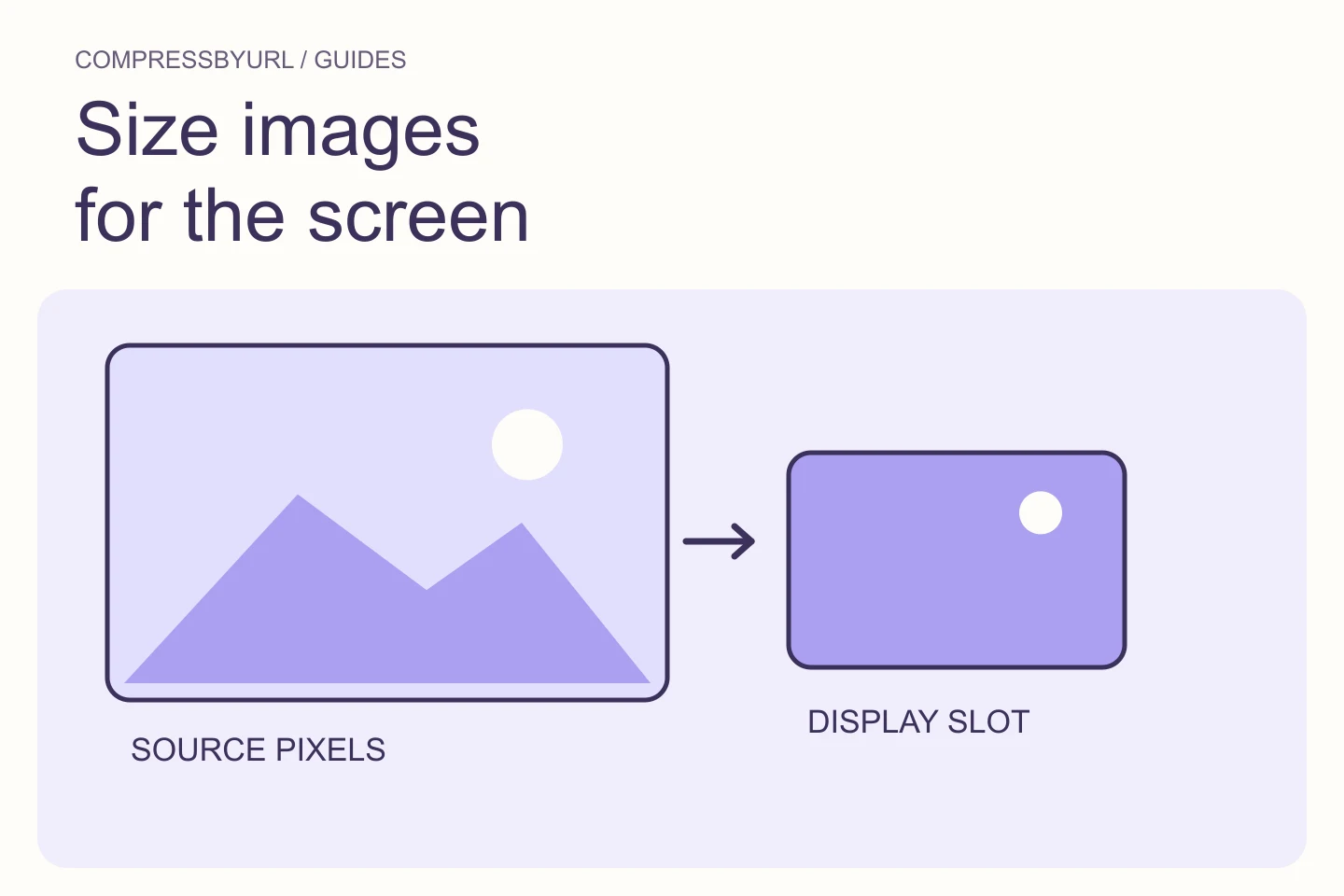
Measure the display slot at the viewport used in the test. Then consider the pixel density you intend to support. In an illustrative layout, a 360 CSS-pixel card on a 2× screen needs roughly 720 source pixels across, not a 3000-pixel camera original. This is a sizing estimate for that layout, not a universal maximum.
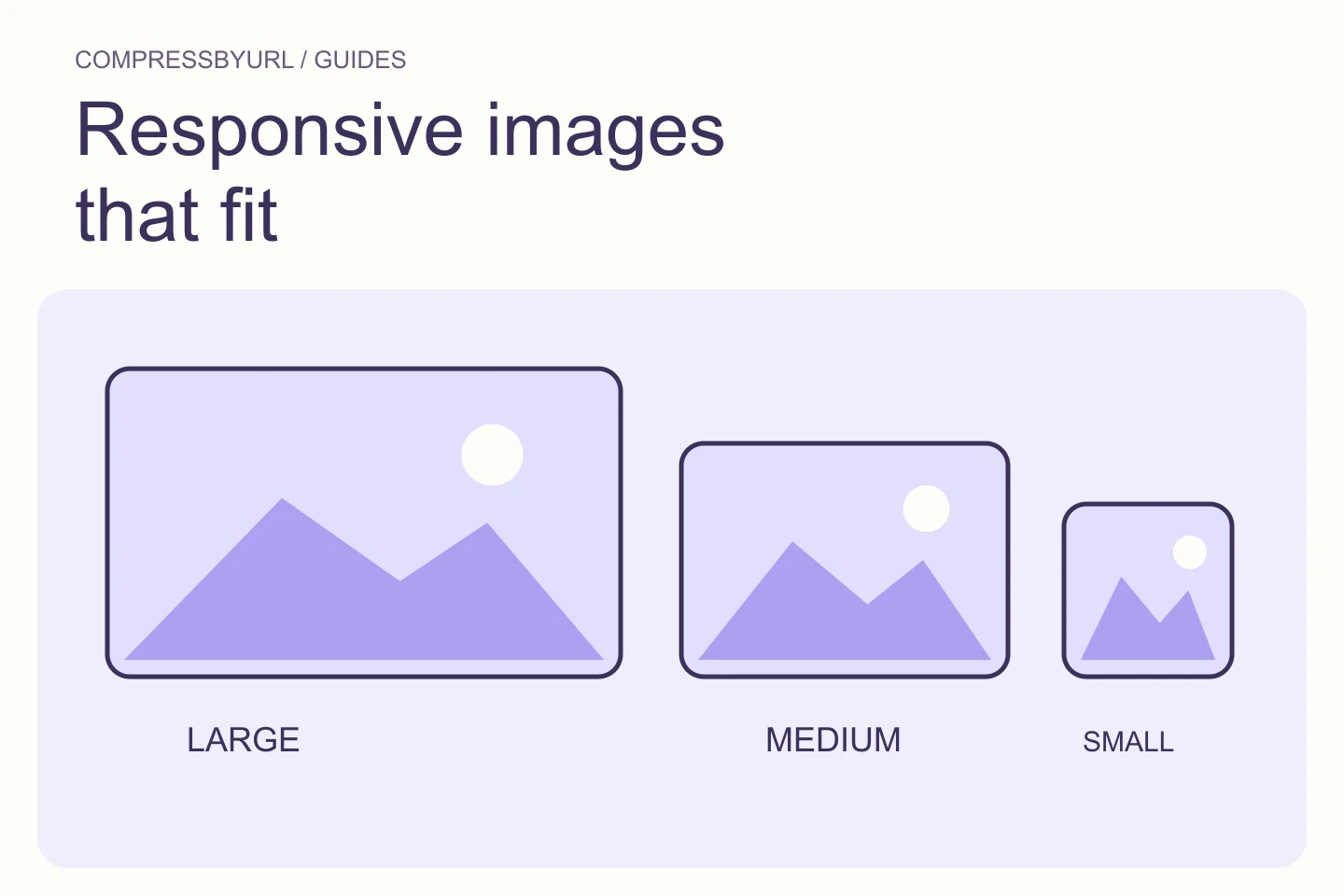
Create responsive variants when the same photograph appears in several slots. Reducing every file to the mobile width would make a desktop hero soft; keeping every file at desktop width would waste mobile transfer. Record the intended crop and inspect faces, product edges, and small labels after resizing. A size reduction that cuts out the subject has failed even if the file is tiny.
Compare encoding after you settle the dimensions
Export the same resized pixels into the formats your site can deliver. Compare visual results at the final display size and inspect sensitive details such as gradients, lettering, and transparent edges. Keep the original as a rollback file. A photograph, logo, and screenshot need different tolerances; do not set a blanket quality value and assume every image is acceptable.
For a controlled comparison, hold crop and dimensions constant. If one export changes both dimensions and format, you cannot tell which change explains the byte difference. Calculate savings from the actual candidate files, not from a format’s reputation. An already compressed JPEG can be a better result than a poorly chosen WebP export.
Replace the requested resource, including responsive candidates
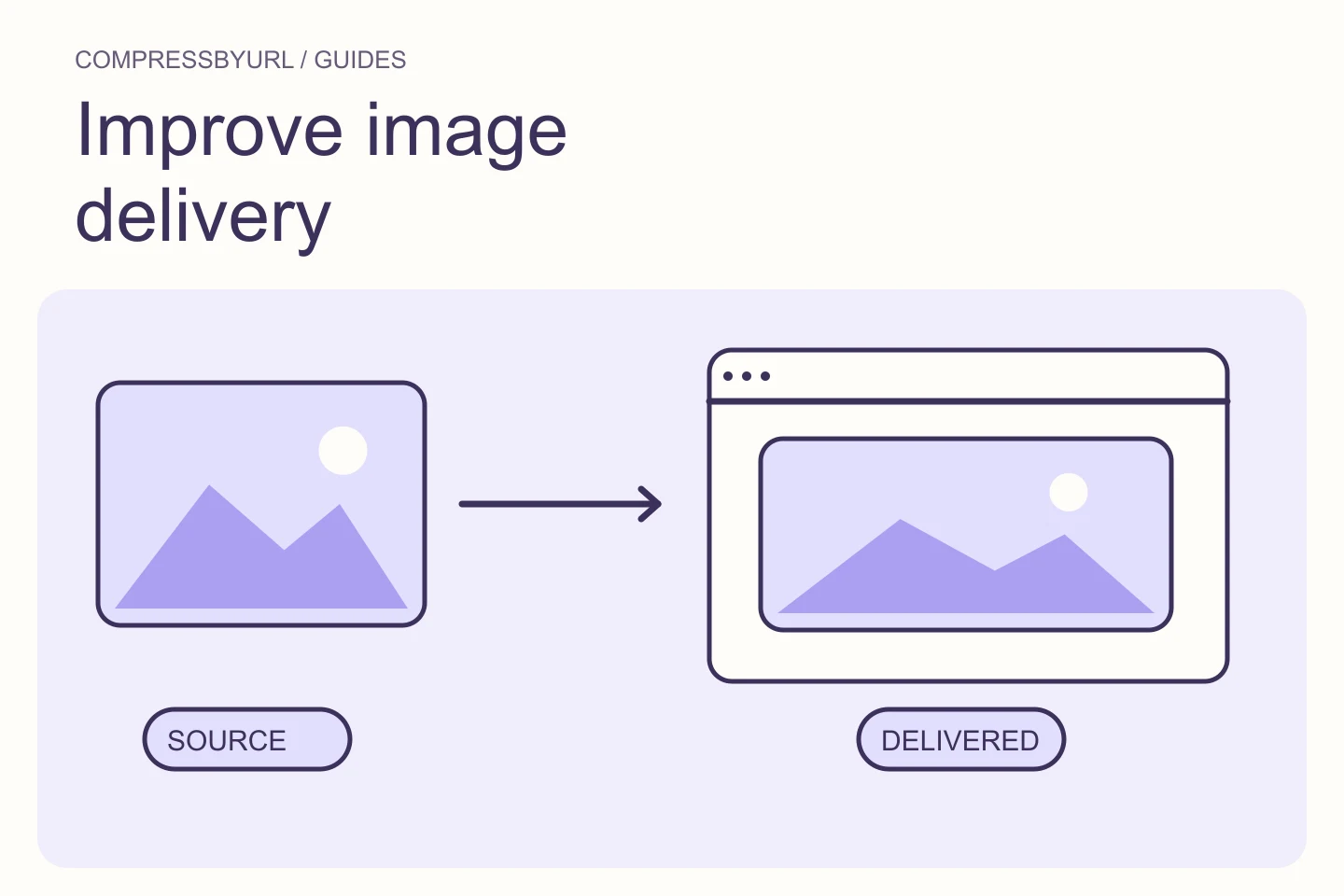
Upload the chosen file and update the template or CMS reference. Check src, srcset, picture sources, and any CDN transformation parameters. A page can continue serving an old large candidate even while the visible media-library entry looks correct. Open DevTools on a fresh navigation and inspect the request that was actually made.
Invalidate only the caches that need it, or use a versioned filename. Preserve alternative text and intrinsic dimensions. Test the page as an ordinary visitor rather than only inside an authenticated editor preview. If your production system regenerates derivatives, confirm the generated files retain the intended crop and quality.
Keep request discovery separate from byte savings
A delivery warning and a late hero request can exist on the same page. Use the Network timeline to ask whether the critical image starts promptly or only after scripts and styling run. Compression addresses transfer weight; it cannot by itself move a resource that is discovered late into the initial HTML.
Inspect the rendering template before adding preloads. A plain hero image in server-rendered markup may need only appropriate loading behavior. A CSS background might require a different discovery strategy. Giving every gallery item high priority creates competition. Write down which resource is critical and why, then make one loading change at a time.
Verify the deployed result with a repeatable comparison
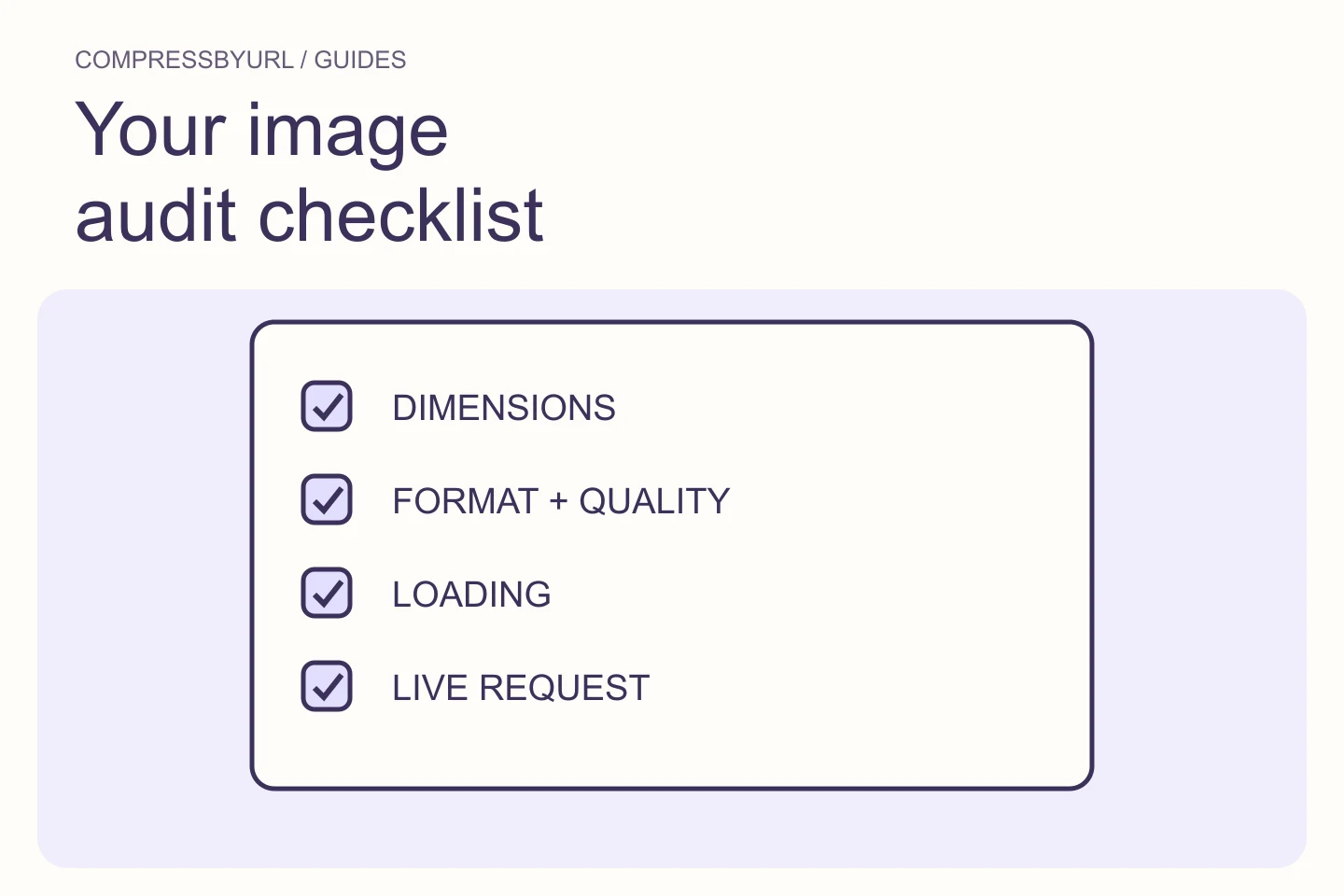
Retest the exact page with the same device setting. Record the selected resource, transferred bytes, and visible quality before comparing scores. For example, a worksheet might show an illustrative change from a 900 KB source to a 180 KB candidate; that would be an 80% file reduction, not an 80% speed improvement. Use your own measurements in the worksheet.
Run more than one comparable navigation because network and server variation affect timings. Check both narrow and wide layouts and confirm there are no missing images or layout jumps. Finish by documenting the replacement URL and the template change so the next content upload does not quietly restore the original problem.
- Find the reported asset with the website scanner.
- Resize and compare candidate outputs locally.
- Deploy through your own CMS or hosting workflow.
- Check the live request and then rerun PageSpeed.
Common questions
Will this guarantee a score of 100?
No. Images are one part of page performance. Server response, scripts, fonts, layout, and test variation also affect the result.
Does CompressByURL update my website?
No. It helps discover image candidates and create optimized replacement files. You deploy those files and update the references yourself.
Sources and further reading
Technical references for the concepts in this guide. Examples with hypothetical values are illustrations, not measured results.