The short answer
- Confirm that the background is relevant to the measured LCP.
- Consider ordinary image markup for meaningful content.
- Match any preload to the resource the page will actually use.
On this page
Confirm the background is part of the critical path
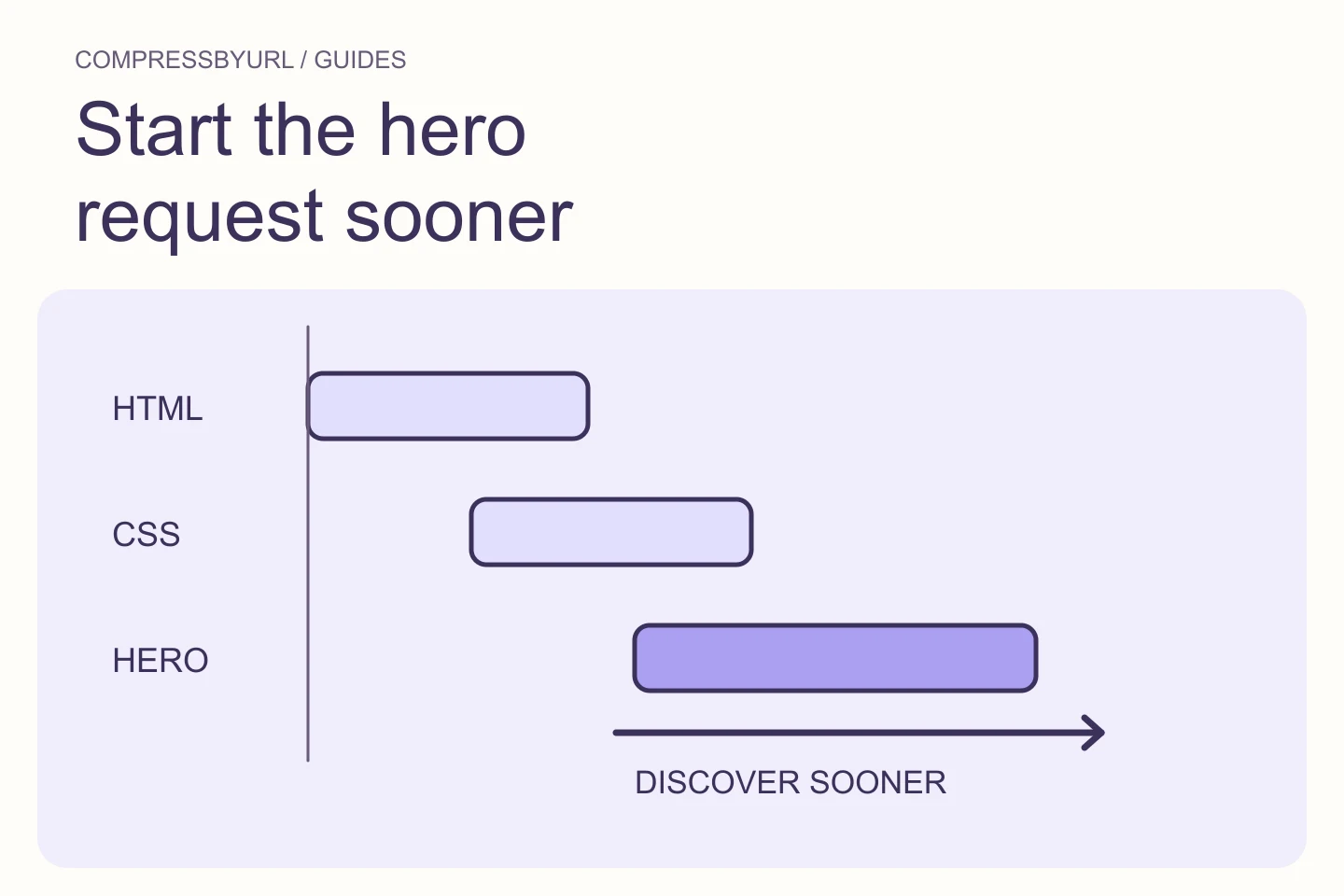
Start with a browser trace and the reported LCP element. A decorative background might be visually prominent without being the issue selected by the test. Record the resource URL and when its request starts relative to the document and stylesheet.
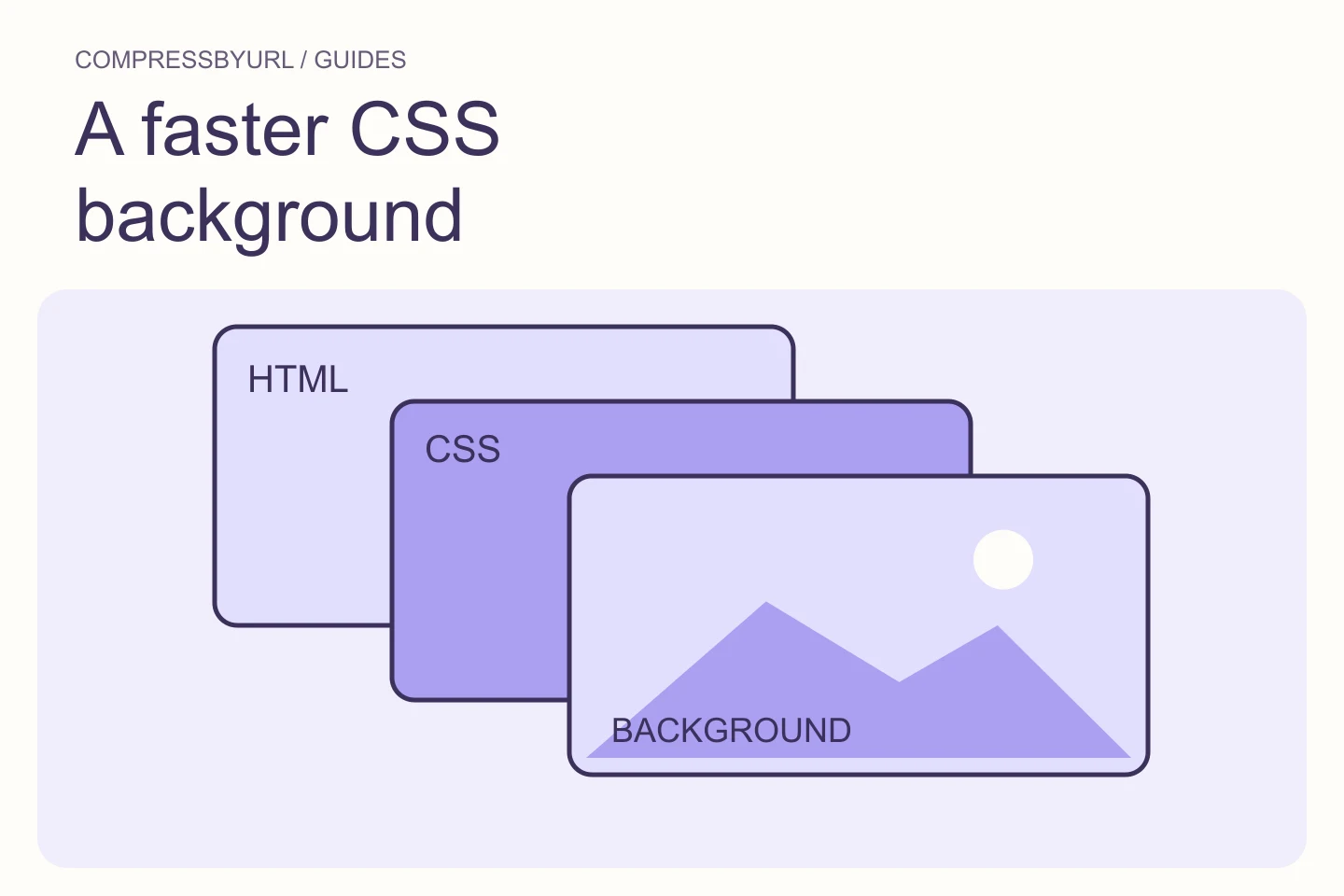
Find the rule that references it. The path might be in an external CSS file, an inline style, a media query, or a theme-generated block. These produce different discovery paths. Keep your investigation attached to the specific rule rather than assuming every CSS background requires the same intervention.
Decide whether this is content or decoration
A meaningful product image should usually have content semantics and alternative text. A purely decorative texture can remain a background. The decision is about what the user needs, not a trick to improve an audit score. If the image explains the article, ordinary markup can be easier to make accessible and responsive.
Moving an image into markup requires checking the layout and crop. Preserve text contrast and intended framing. Do not duplicate the same asset in both CSS and an image element. Keep decoration hidden from assistive technology when it carries no information, and keep meaningful content available independently of visual styling.
Use preload only for a resource you need early
web.dev explains preloading responsive images and the importance of aligning early resource discovery with actual delivery. A preload can help when a critical asset is otherwise discovered late. It also commits bandwidth, so an unnecessary or mismatched preload can waste work.
For a single known background, confirm the preload’s URL matches the URL requested by the CSS. For responsive images, verify the selected candidate at each relevant viewport. Avoid downloading a desktop background on mobile while a media query requests another file. Prefer the simplest strategy you can confirm in the Network panel.
Reduce the source dimensions to the actual frame
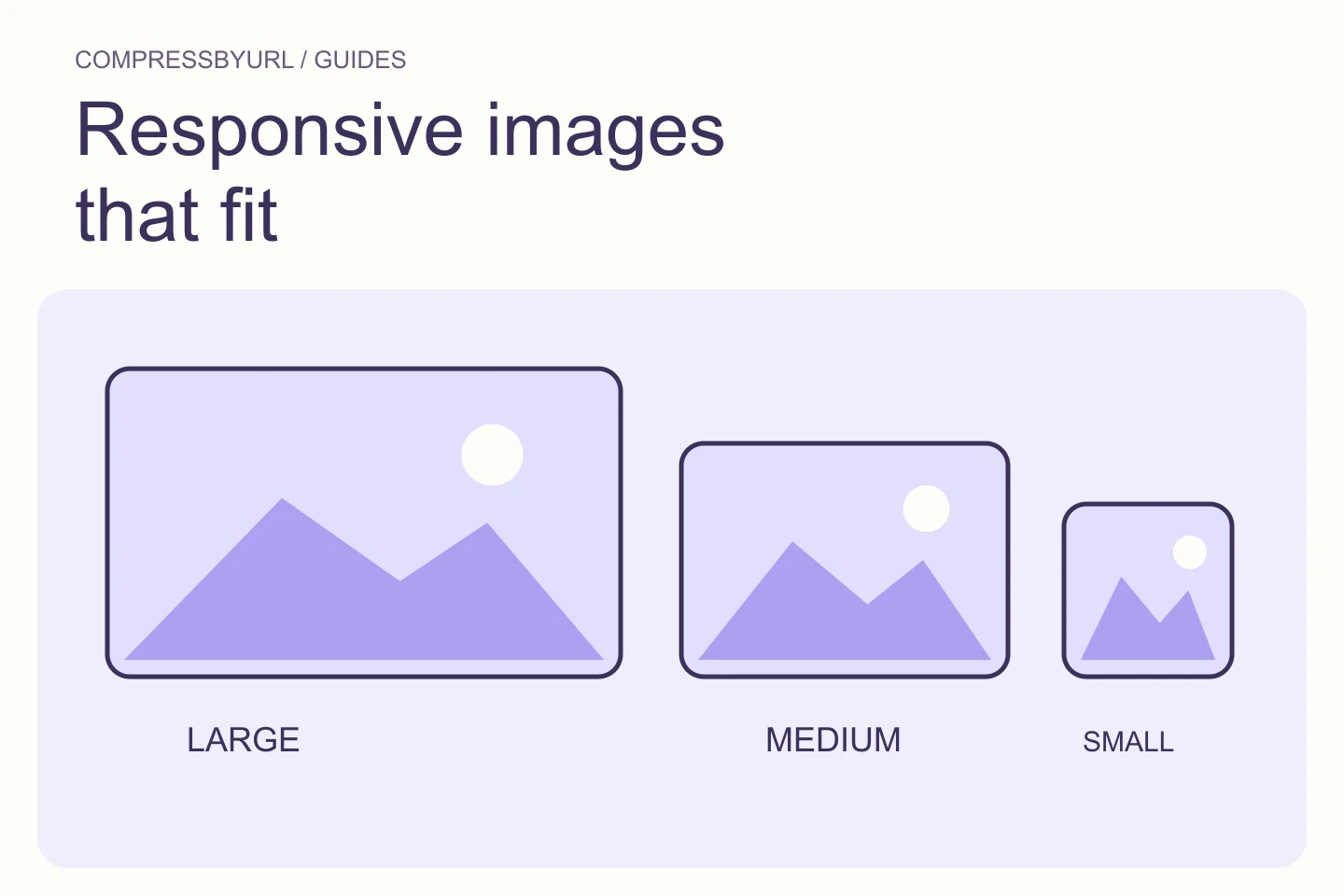
Measure the hero area and consider the crop under object-fit or background-size behavior. A broad desktop image cropped into a tall mobile frame may need a separate composition. Reducing width alone might still retain a large amount of invisible image area.
Export a candidate from the best available source and compare the subject at the target layouts. Keep enough pixels for the supported density without carrying a print-resolution original. Choose formats and quality after geometry is clear. The smallest file is not useful if the heading becomes unreadable against its new details or the subject falls outside the frame.
Inspect styles and rendering after the resource arrives
If the image request is prompt and completes early, examine what keeps the hero from painting. Stylesheets, scripts, transitions, and visibility gates can delay presentation. A source-size change cannot directly remove those conditions. Check whether content is useful before client code finishes.
Do not animate a critical content panel from a fully hidden state just to create a reveal. Keep decorative motion subordinate to the reading experience and honor reduced-motion preferences. Test a navigation with slower loading so you can observe whether the first view depends on a late effect or initialization.
Verify one resource and a preserved visual composition
After implementing the discovery fix, inspect the request list for duplicate downloads. Check both the main desktop composition and the alternate narrow layout. Confirm the chosen asset, its bytes, and the critical element timing under the same test settings.
Use the local resize and compression tools to produce the approved file, then change your own CSS or component references. Keep a note of the resource strategy and the reason for any preload. A future redesign should be able to remove that hint when the critical resource changes, rather than inheriting an obsolete download forever.
| Image role | Delivery decision to consider |
|---|---|
| Meaningful hero photograph | Accessible image markup and responsive candidates |
| Decorative critical background | Matching discovery strategy and measured preload need |
| Offscreen decorative texture | Defer or omit until useful |
Common questions
Should every CSS background have a preload?
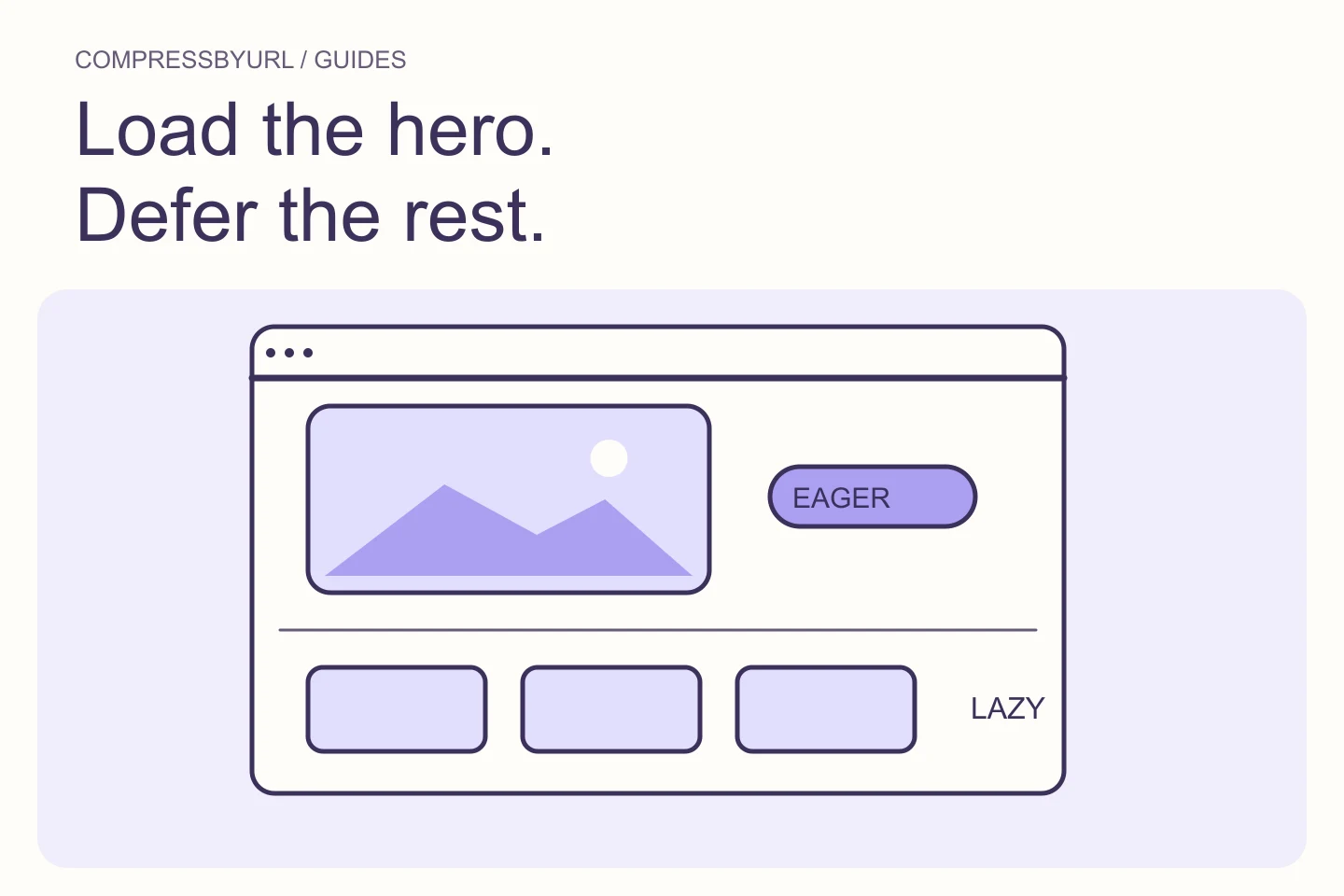
No. Reserve early loading for resources the initial view genuinely needs, and verify that the browser requests the same resource.
Can the scanner measure CSS background timing?
No. A static inventory cannot establish rendered timing. Use your browser’s request timeline or performance report for that evidence.
Sources and further reading
Technical references for the concepts in this guide. Examples with hypothetical values are illustrations, not measured results.